What is eStamping?
Stamp papers in India are legally enforceable and have court fees associated with them. These are commonly used for affidavits, agreements, contracts, and powers of attorney and are admissible for judicial proceedings. Each stamp papers has a fee or denomination, a unique number and issuing state associated with them. Digital or eStamp papers. Digital documents with e-Stamps are the digital version of these Stamp papers, are legally enforceable and hence a very important component in documentation and signing. With our e-stamp services, users get:
- Single platform to cater to PAN India requirement
- Easily configurable with DigiDocs and DigiSign
- Multiple denominations are supported
- Retain Point of Inventory Management
- Manage e-Stamp inventory, including credits & receipts in real-time
- Auto triggered email reminders when 80% of e-Stamp inventory is consumed
- Audit Trail and Reporting
- Stamp paper Certificate ID wise report for consumption and carried forward balance
eStamps Procurement Process

How to place an order?
- After loging-in to the Platform, navigate to eStamping section on the left navigation bar.
- Click on the "Order" tab.
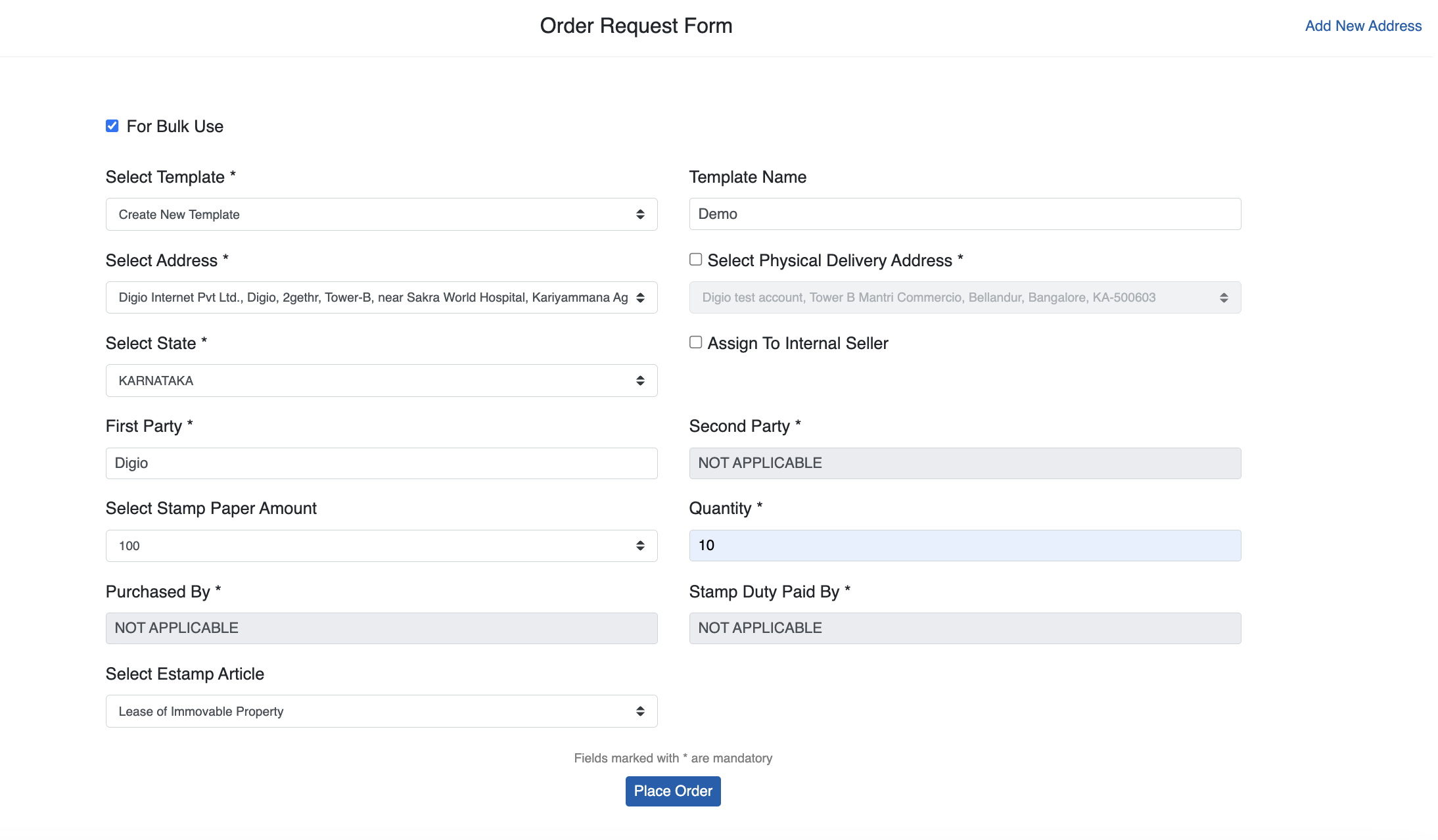
- Click on “New Order” to proceed. Select bulk use to order multiple stamp papers in one go.
- Select a previously used template or select “create new template” to start fresh. New templates would need a name, which would be used to affix stamp papers to your documents.
- Select a pre-defined address or enter a new by clicking on “Add New Address” from top right corner.
- Stamp papers would be couriered to the designated “Physical Address”, please select appropriately.
- Select state for which you wish to procure the stamp papers. Enter quantity and denomination of stamp papers required.
- Please enter name of First Party, ideally it should be the legal business signing and procuring the stamp paper. Enter its phone number and Name of Office.
- Enter Second Party name only if you wish to have the stamp-paper for a specific second party. Enter its address and phone number accordingly. For bulk use and by default these will need to be mark as “Not Applicable”.
- Please select eStamp Article code, which denotes the reason for buying stamp paper.
- Once submitted, Digio requires a 5 - 7 business days after payment is received to complete the procurement process.
Please note:
- All the steps mentioned above can be used on a standalone basis, as well as, from the platform.
- The inventory management is tightly coupled with eSign process, if the document is not signed by any of the signers then the eSigning will expire and the stamp paper will be auto released back to the inventory for other agreements/documents.
- Tag name for placing order is recommended, use a combination of entity name, denomination amount, short code of State and line of business. (Eg: nameofentity_KA_100_BL). Here KA stands for Karnataka and BL stands for Business Loans.
- Typical TAT (turnaround time) to fulfill orders is minimum 5 - 7 business days, after payment is received by Digio.
How to check your inventory?
After signing in to Digio's enterprise platform, navigate to eStamping section on the left navigation bar, and click on the sub-menu "orders" to check your inventory.
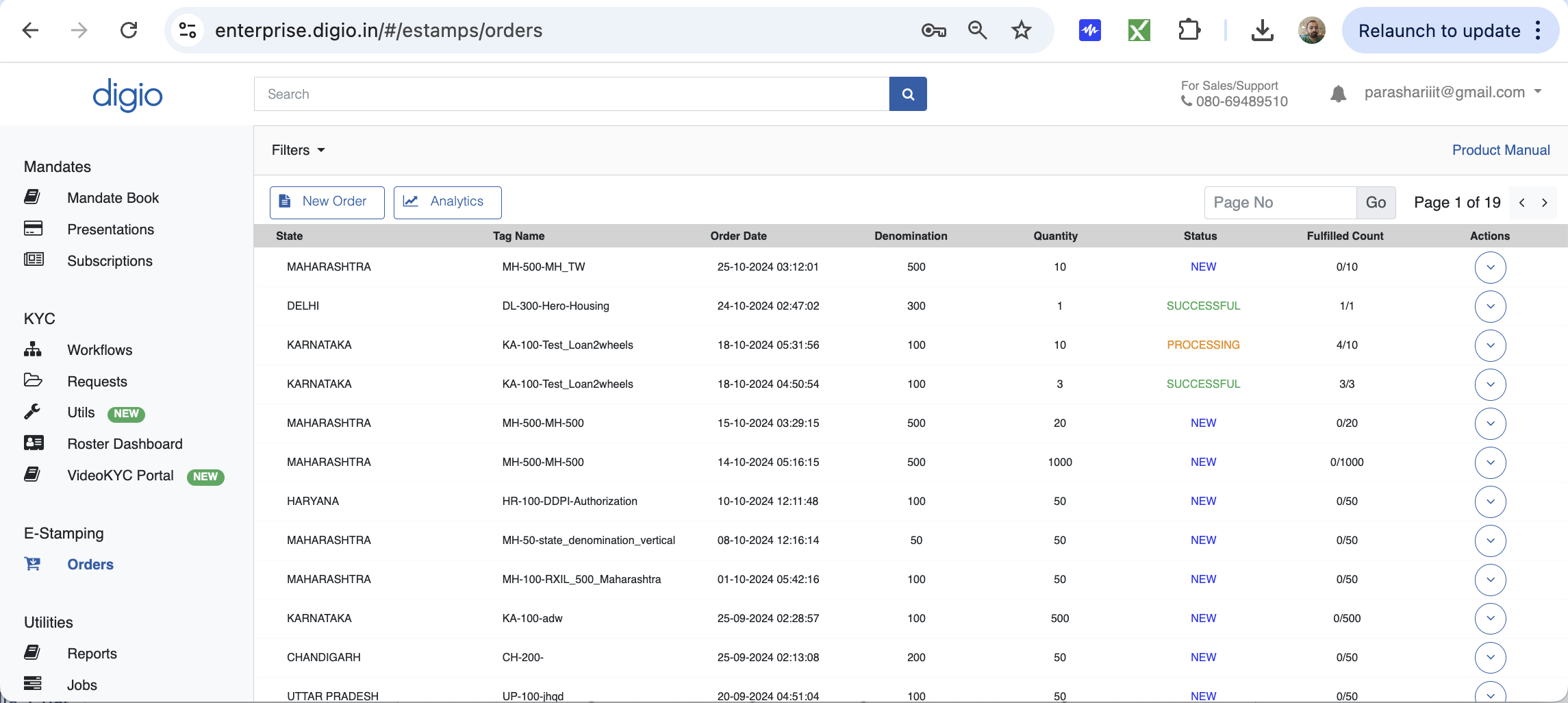
The table gives all the details including
- State: Name of the state for which stamp paper is procured.
- Tag Name: User defined tag name while procuring the stamp paper. Same tag would be used in API calls as well as from Digio’s frontend.
- Order date: Date on which order was placed
- Denomination: Denotes the value of the stamp paper
- Quantity: Denotes the count of stamp paper in the particular order
- Status: Denotes the current status of the order.
- New: Order has been recently placed
- Partially fulfilled by seller: Seller has partially fulfilled the order but admin has not approved the stamp paper.
- Partially Successful: Some stamp paper order has been successfully fulfilled and can be consumed.
- Successful: Entire order is successfully completed.
- Fulfilled Count: Denotes the count which is successfully completed.
How to see the details of a particular order?
- Navigate to the inventory page as described above, and click on any of the partially successful or successful orders, to see the underlying details.
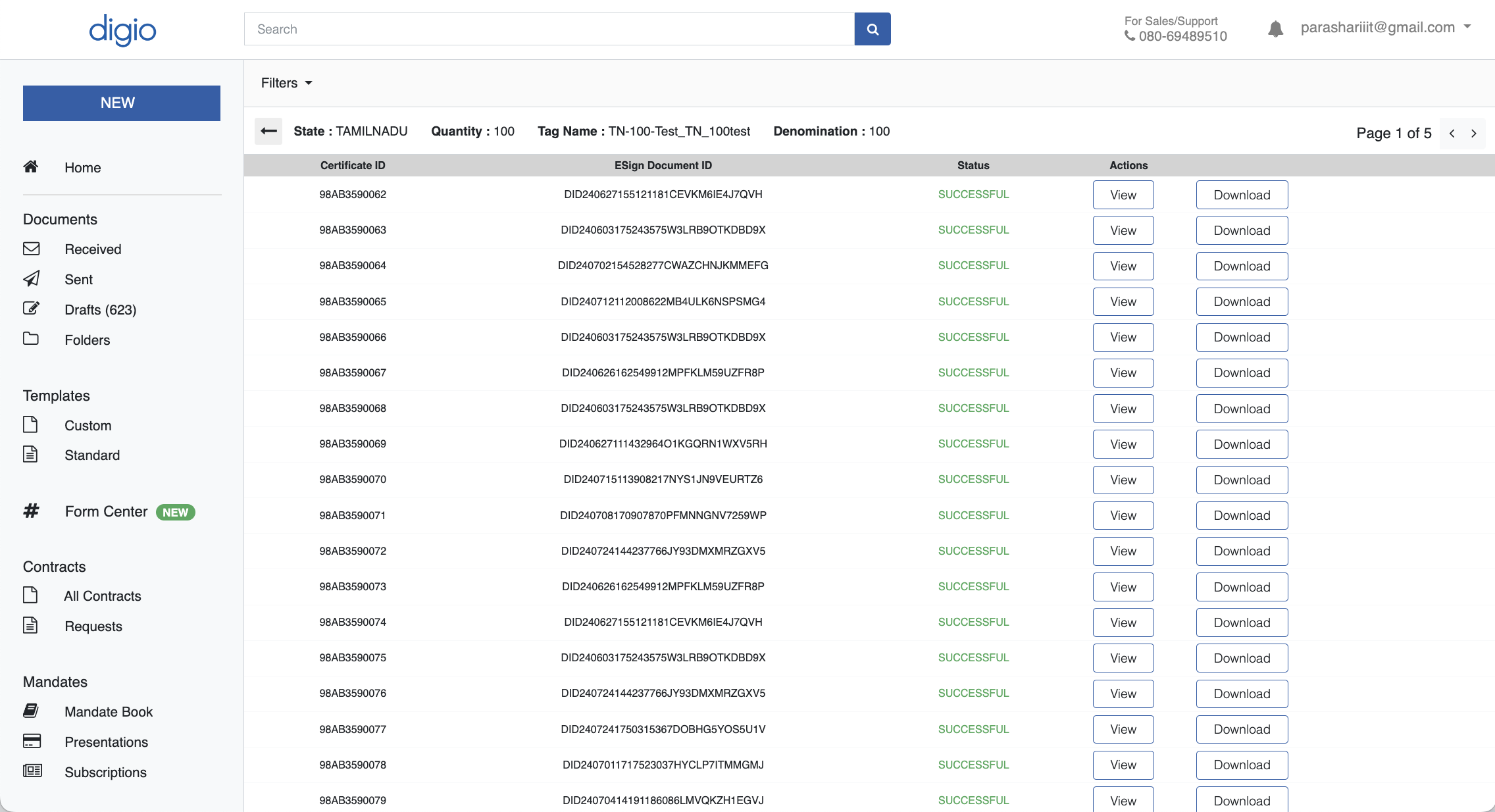
The table gives all the details including
- Certificate ID: The unique certificate id of the stamp paper uploaded
- ESign Document ID: Unique Docket number; stating against which document this stamp paper has been consumed
- Status: Denotes the status of the stamp paper
- View button: Allows you to preview an enlarged view of the stamp paper
- Action button: Allows you to download the uploaded stamp paper
How to check number of stamp papers purchased and consumed?
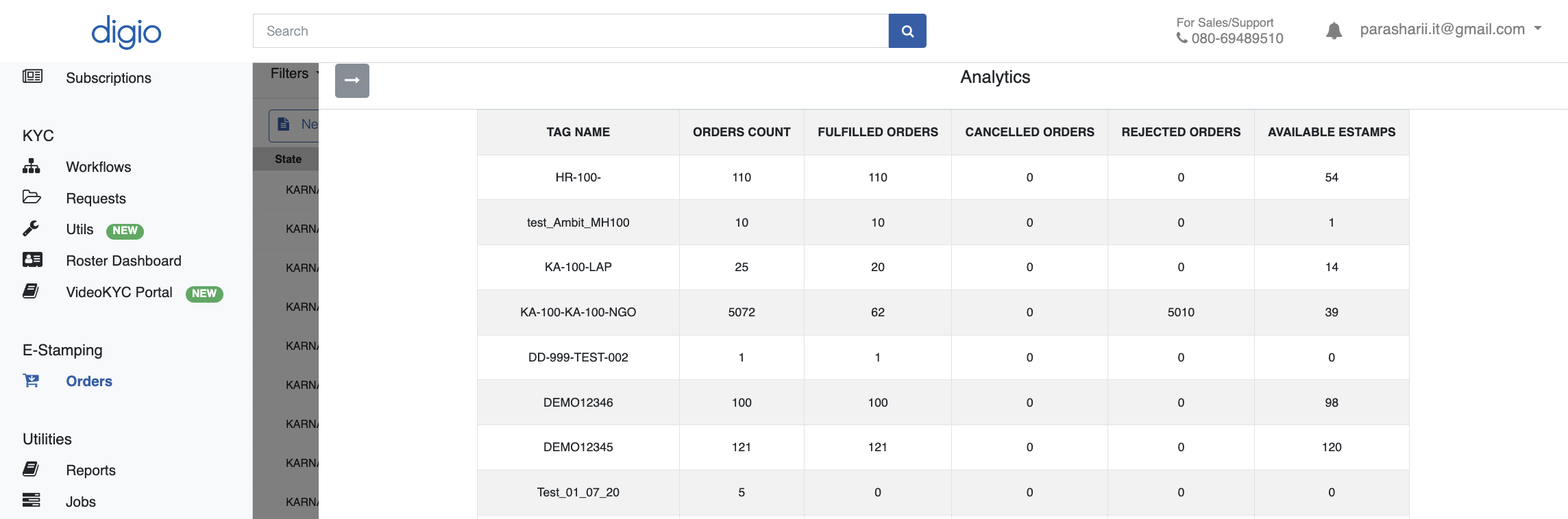
Click on the analytics button at the top to see a snapshot view of your inventory along with usage details.
- Tag Name : User defined tag name while procuring the stamp paper. Same tag would be used in api calls as well as from Digio’s frontend
- Orders Count: Number of stamp papers included in that order
- Fulfilled Orders: Number of fulfilled orders
- Available Stamps: Count of available stamp paper in the inventory
How to generate a report of eStamping services?
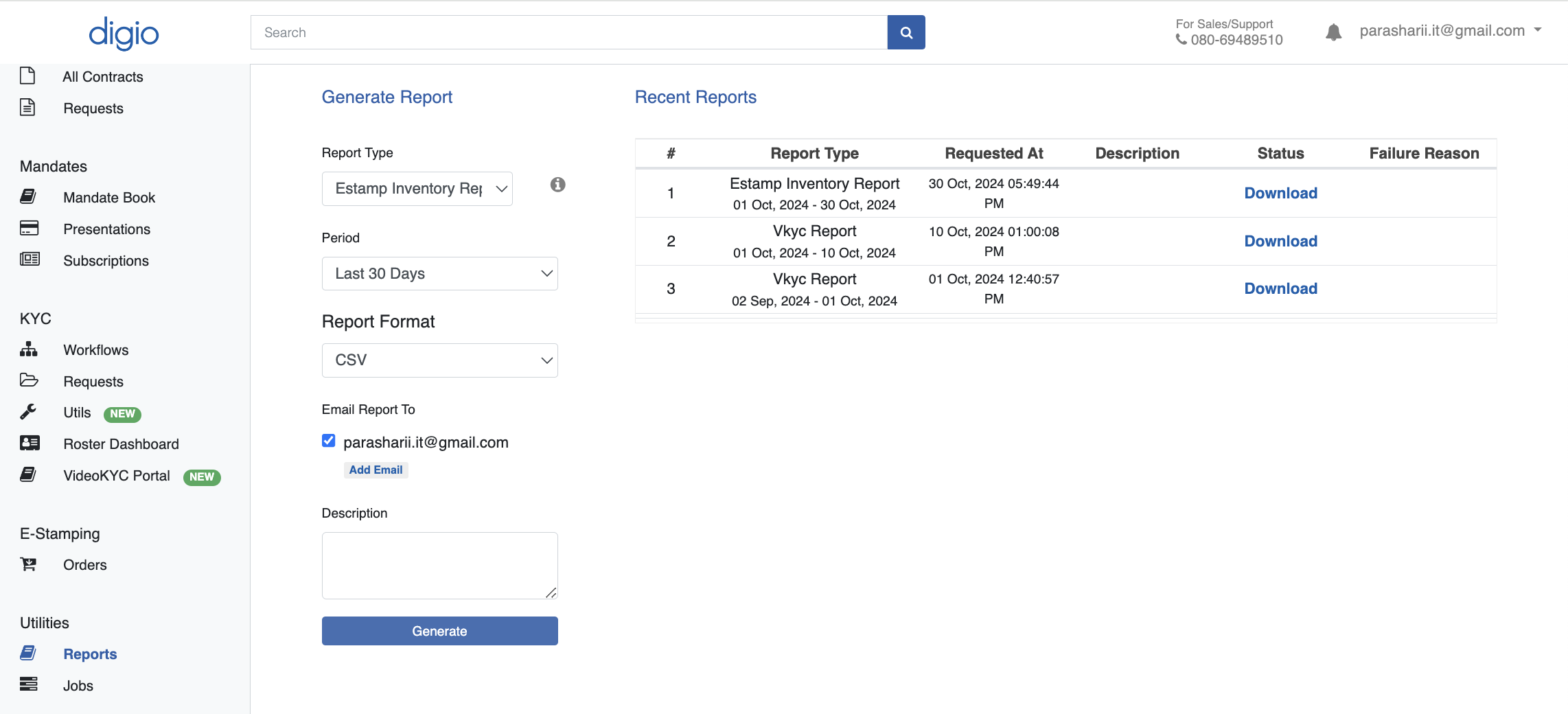
To generate a Report, click on 'Reports' under 'Utilities' section in the left navigation panel. Please select eStamp inventory, eStamp consumption and eStamp procurement report from the dropdown.
- Once a report type is selected, date range and email address(es) is provided, you can click on generate, the report is added to the list on the right as soon it is ready.
- Once the report is generated, the ‘Download’ button will become active, you can download the report csv.
- The same report will also be emailed to the email address provided while generating.
- The output csv file would include data as per the report:
- eStamp Inventory Report contain details of the available stamp papers in the system. This can also be used as the closing balance at the end of the month or a period.
- eStamp Consumption Report contains details of all the stamp papers consumed along with the respective documents on which they have been attached.
- eStamp Procurement Report contains stamp papers that were purchased in a given duration.
- Estamp (file name), denomination (amount), state where consumed, eStamp number, Document Id, and Document Name along with the last updated date and time.