A Workflow is a series of steps a Corporate needs a prospect to perform to become a customer. A workflow may also be used for company's internal processes. Each of these steps can be configured and added in DigiStudio using the process mentioned below.
How is a user journey created using Digi Studio?
The easiest and fastest way to create a workflow is through our workflow builder on the DigiStudio Dashboard. It's a simple, wizard like UI, which allows creation of any kind of customer onboarding journey in minutes. Requests can then be triggered to onboard new customers.
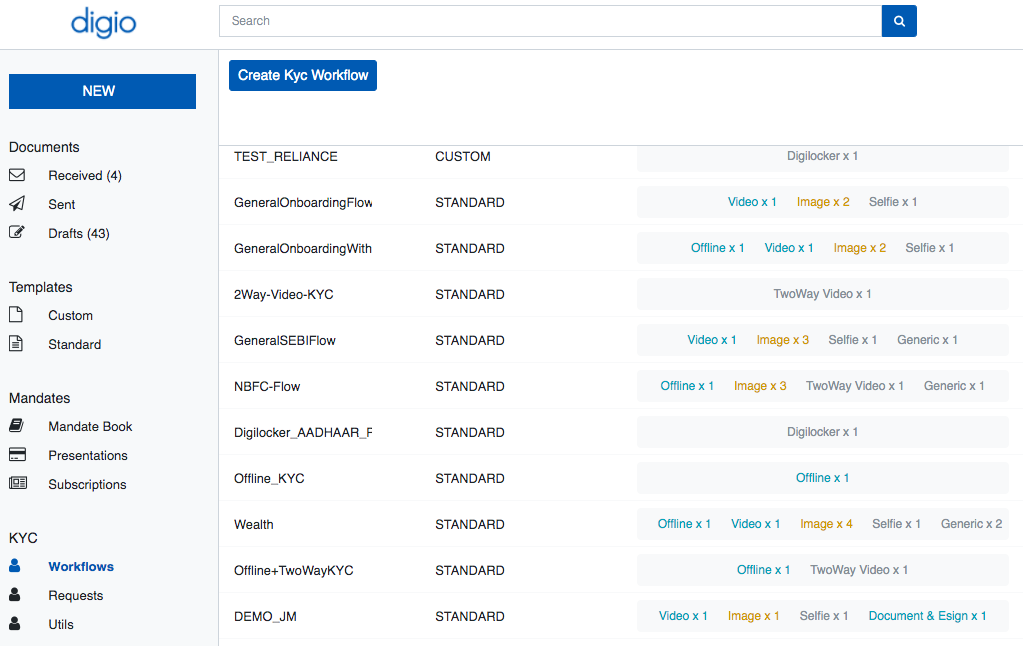
Click on ‘Create KYC Workflow’ button under the KYC workflow panel on the left of the dashboard and enter the following details (refer screenshot above)
| Features | Description | Important Note |
|---|---|---|
| Workflow Name | Define a name to your workflow | Please use all lower case characters and “_” (underscore), instead of a space between two words. The same naming convention needs to be referred while making api calls if any. |
| Mandatory Fields | Add mandatory fields that’s required before generating a onboarding request | Mandatory fields are data items required to be put in by the team that triggers the request to the customer. These fields contain any data that the business has to provide in the workflow. |
Once the workflow is created, any number of steps can be added to it to create the user journey required.
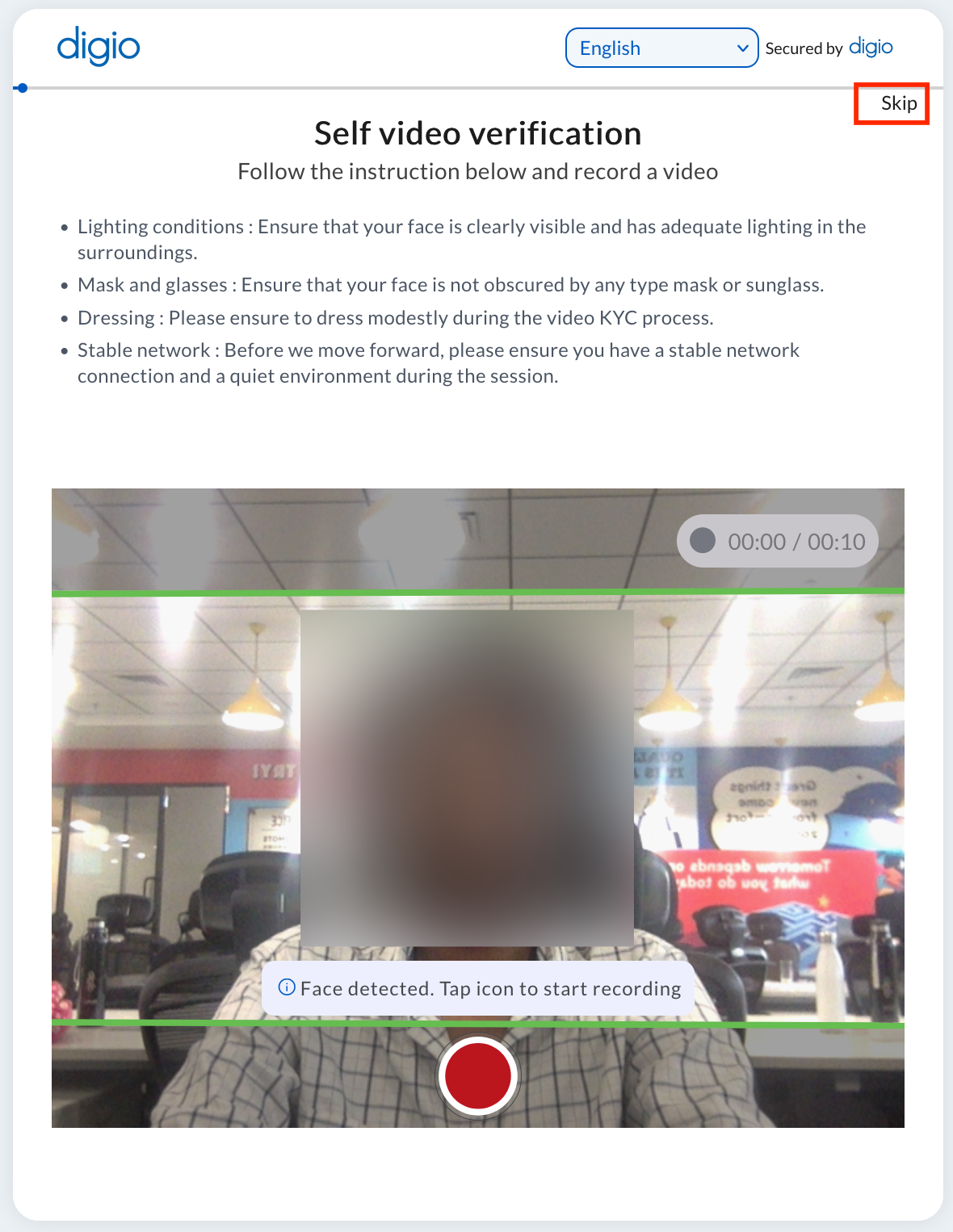
Note: if any step is marked as optional, a hyperlink with the word SKIP appears in the bottom right of that action.
Clicking it skips that step entirely. Pictured optional VIDEO step below:
What are the steps possible in a workflow?
A workflow on the Digio platform can have any number of steps, each step being one of the following:
| ‘Type’ of the Step | Business Use Case | Business Scenarios |
|---|---|---|
| AADHAAR_OFFLINE | Allows verification of Aadhaar number. | Allows a user to verify their Aadhaar. |
| DIGILOCKER | Allows verification of any document present in DigiLocker account e.g. Aadhaar, PAN, Voter ID | Allows a user to pull one of their documents hosted on Digilocker. For more info : https://digilocker.gov.in/ |
| PENNY_DROP | Allows bank account verification | Allows a user to verify their bank account by making a transaction of 1 INR (Standard) or any amount between 1 and 2 INR (Custom). |
| VIDEO | Allows video verification. | Allows the user to record a 10 second video performing any relevant action as instructed. E.g. speaking an OTP shown to them which is recognized from audio using ML speech to text. |
| SELFIE | Allows capturing user’s selfie photograph | Allows the user to capture a selfir image of them. The selfie image can then be compared or matched against the image available from the ID document. |
| ID_PROOF | Allows capturing, validating and extracting information of : PAN, Aadhaar, Driving License, Indian Passport, Vehicle Registration Card | Allows the user to upload an image of a specific ID document. All the relevant PII information is then optically read and shared with the corporate. |
| SIGNATURE | Allows a specimen signature capture by either clicking a photograph of signature or drawing it on on screen canvas | Allows the user to upload an image of their signature for fulfilling specimen signature requirement. |
| CHEQUE | Allows cheque upload with optional Bank Account Verification | Allows the user to upload an image of a cheque from which bank account details may be fetched and verified. Refer penny drop for verification process. |
| TWO_WAY_VIDEO | Allows Video-In Person Verification (VIPV) | Allows a two way KYC/onboarding video call between the customer and Corporate’s agent. The call may have specific instructions for actions to be performed by the customer and separate specific instructions for the agent. |
| GENERIC | Allows user consent and uploading any file required for KYC record | This is used to perform one of the below: 1. Take user’s consent on a message/declaration
2. Allow user to upload a file without any validations and perform OCR (optical character recognition) on it. Eg: Salary slips, ITR, Utility Bills, GST Certificate, etc. |
What are add-ons?
Add-ons are activities added on to a step to further customise the workflow to the needs of a Corporate. They allow for the exact user onboarding journey necessary.
| ‘Type’ of Add-on | Description |
|---|---|
| User Facing | |
| User Instruction | Allows an instruction given to the user as part of a step. This instruction stays static throughout the step. |
| Assistance Instruction | A dynamic instruction shown during execution of the step, which the user has to click on. The instruction is resolved on click and disappears. This is to be used for things like liveness check. |
| User Consent | Allows a declaration/the user’s consent to be taken on a message, as part of a step. |
| Geo Tagging | Allows capturing and storing the user’s location with their permission. |
| Agent Facing | |
| Frame Capture | Allows capturing and saving a frame of the user’s video feed. Often used to save a photo of them holding up a document to the camera/carrying out an instruction on video KYC. |
| Agent Instruction | Used to give specific instructions to the KYC agent. |
| Agent Comments | Used to capture the KYC agent’s comments on the video KYC call. |
| Questionnaire | A checklist of questions that appear on the agent’s screen which he individually can mark as ‘Yes’ or ‘No’. |
Which steps can have which add-ons?
The following table lists the possible add-ons for each step:
| USER INSTRUCTION | USER CONSENT | GEO TAGGING | FRAME CAPTURE | AGENT INSTRUCTION | AGENT COMMENTS | QUESTIONNAIRE | |
|---|---|---|---|---|---|---|---|
| DIGILOCKER | ✓ | ✓ | ✓ | x | x | x | x |
| AADHAAR_OFFLINE | ✓ | ✓ | ✓ | x | x | x | x |
| PENNY_DROP | ✓ | ✓ | ✓ | x | x | x | x |
| VIDEO (One Way) | ✓ | ✓ | ✓ | x | x | x | x |
| IMAGE | ✓ | ✓ | ✓ | x | x | x | x |
| SELFIE | ✓ | ✓ | ✓ | x | x | x | x |
| GENERIC (PLACEHOLDER) | ✓ | ✓ | ✓ | x | x | x | x |
| TWO_WAY_VIDEO | ✓ | ✓ | ✓ | ✓ | ✓ | ✓ | ✓ |
What do addons look like to the Customer?
Let’s have a look at how the three types of user-facing addons look to the customer.
- User Instruction - this is a custom text instruction given to the user before a step begins. E.g. the user may be asked to keep a document handy before a two way video call.

- User Consent - this is shown as a modal on the screen with a checkbox next to a text block which the user must check to show their consent. If not marked optional, the KYC flow does not proceed till consent is given.
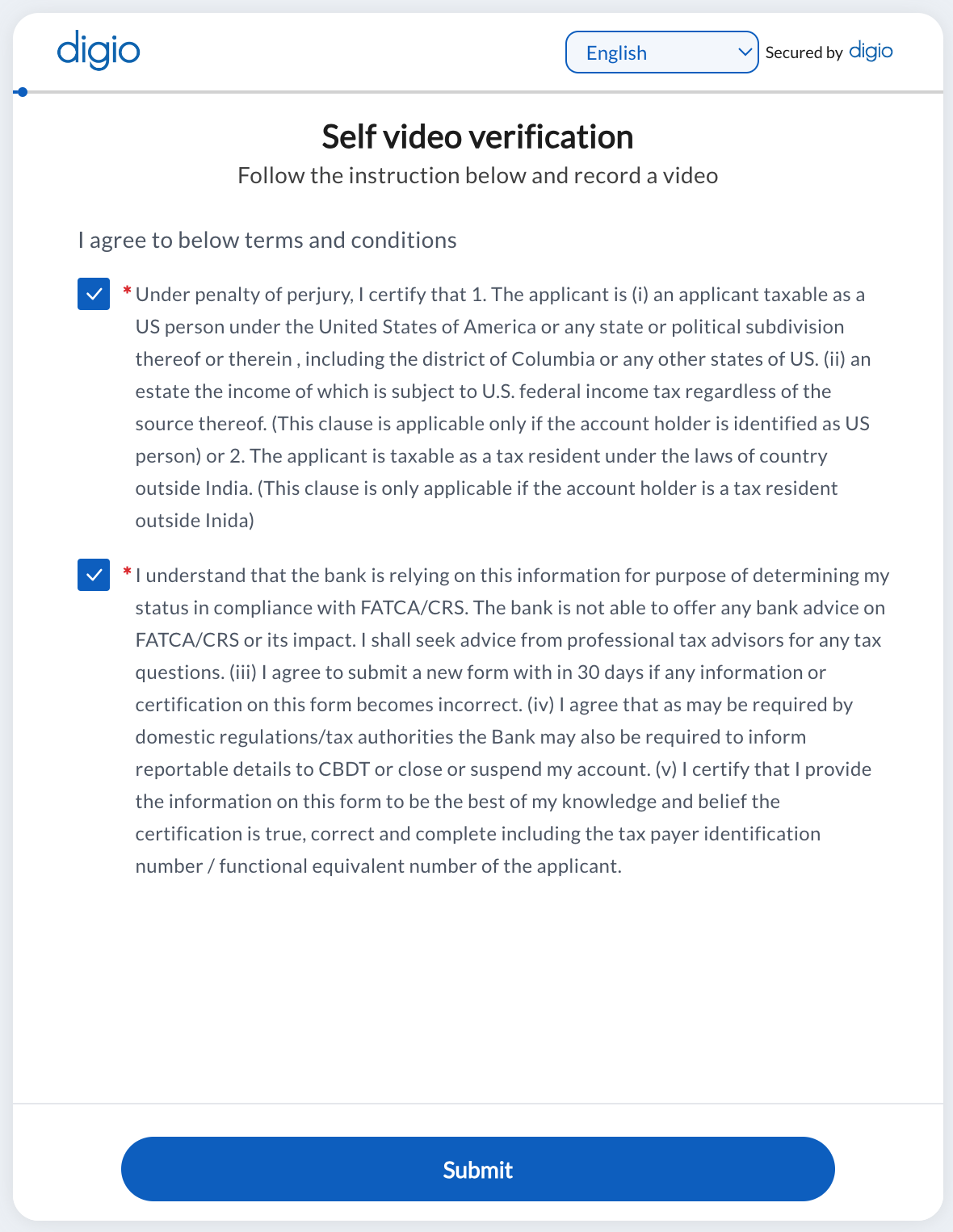
- Geotagging - this asks the user for location permission and saves his detected coordinates. If not marked optional, the flow does not proceed till permission is given.
- Assistance Instruction - An assistance instruction is a dynamic instruction shown during execution of the step, which the user has to click on. The instruction goes away on click. If not clicked, the user has to go through the step again.
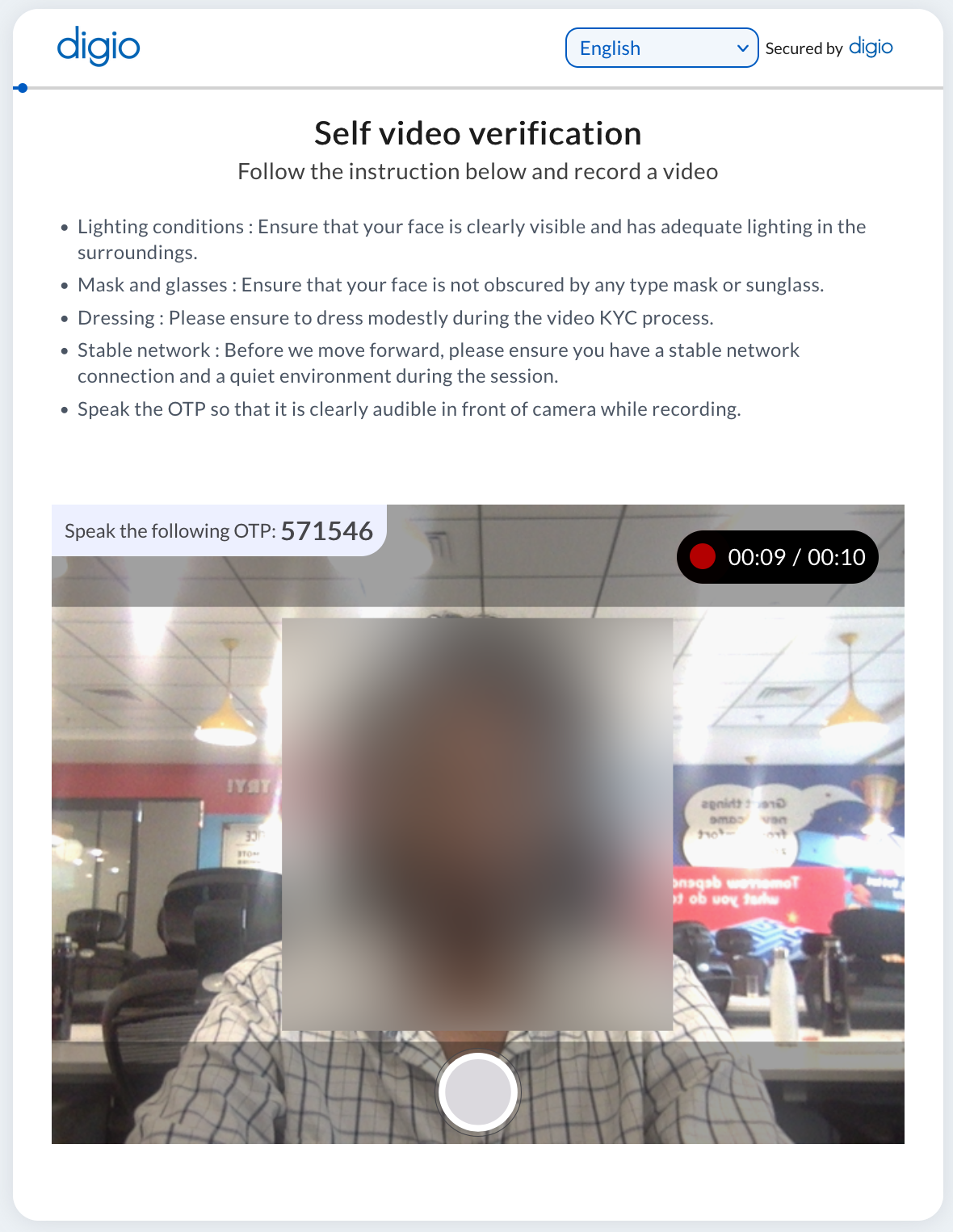
The four types of agent facing addons are for TWO_WAY_VIDEO exclusively and are outlined here.