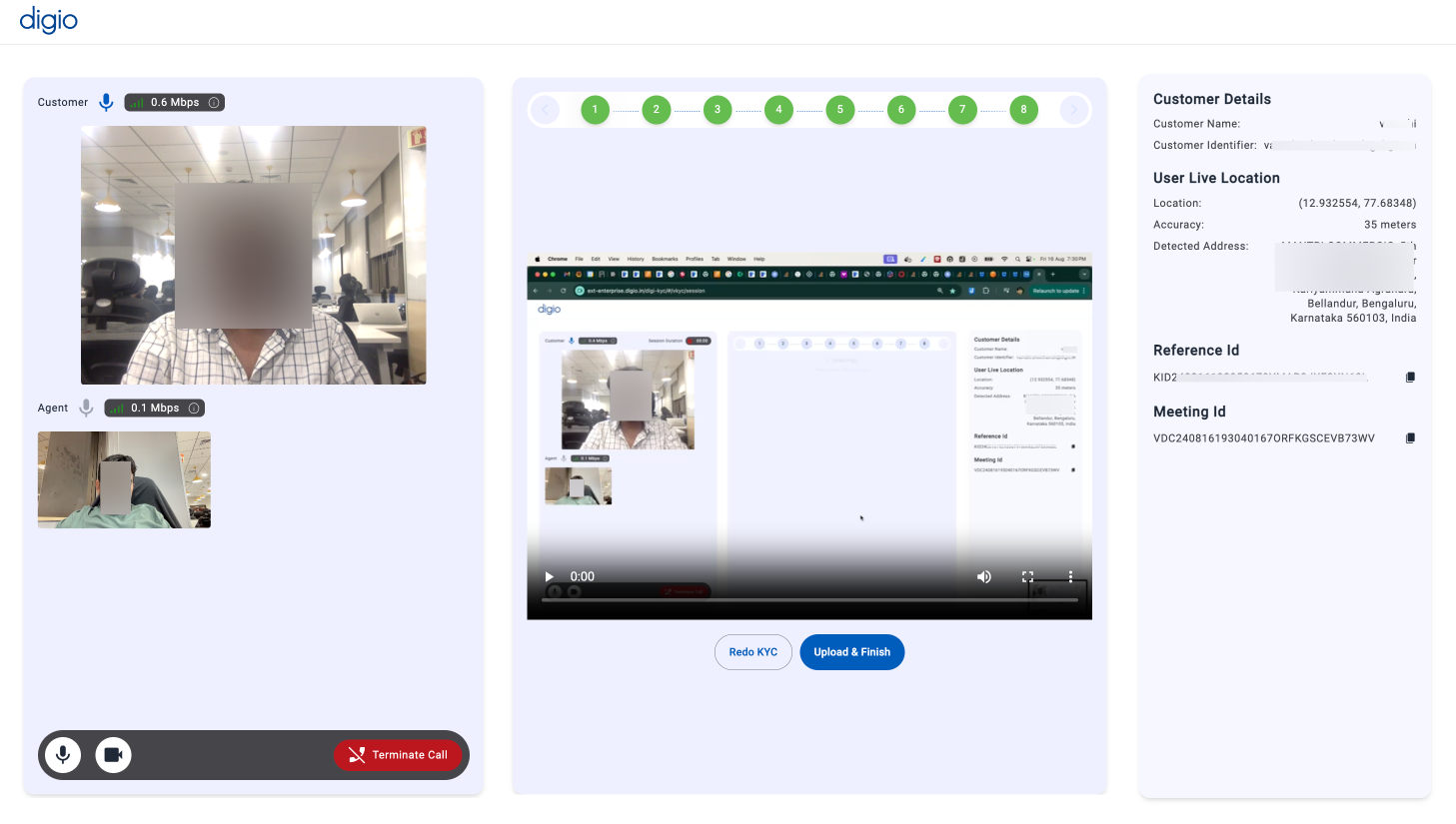
The TWO_WAY_VIDEO step allows the user to get on a video call with your agent and carry out the instructions configured.
This step has the unique agent facing addons - FRAME_CAPTURE, AGENT_INSTRUCTION, AGENT_COMMENT and QUESTIONNAIRE.
The agent is a sub-user of the org account that generates the request.
There are two ways to assign an agent: PRIORITY ASSIGN AGENT - the subuser email entered will be used if that agent is online while the user starts the step. If that agent is not available but others are, one of them will be assigned. STRICT ASSIGN AGENT - the subuser email entered will be assigned to the call and the user will be shown a wait screen till that agent is online. If no sub-user email is provided, the system will assign an agent randomly.
Setting the sub user:- Login to testing business account and under profile section "subordinate users" [ Business sandbox login]
- Manage sub users > Add users > specify email and link goes to register as Agent login (Set password and login to ext.digio.in for sandbox)
- Once successfully registered, same sub user will show up in business account under "Manage users" tab
- Click on Manage groups and give the registered agent the necessary access control permissions (KYC permissions)
A text or audio recognized OTP can be selected for the user to write/speak as mentioned in What do addons look like to the Customer?(Assistance Instructions)
FACE_MATCH options are also identical to What do addons look like to the Customer?(Assistance Instructions)
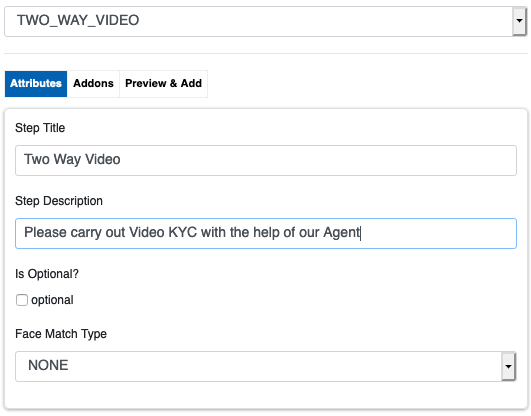
A TWO_WAY_VIDEO step is added to a Workflow as below:
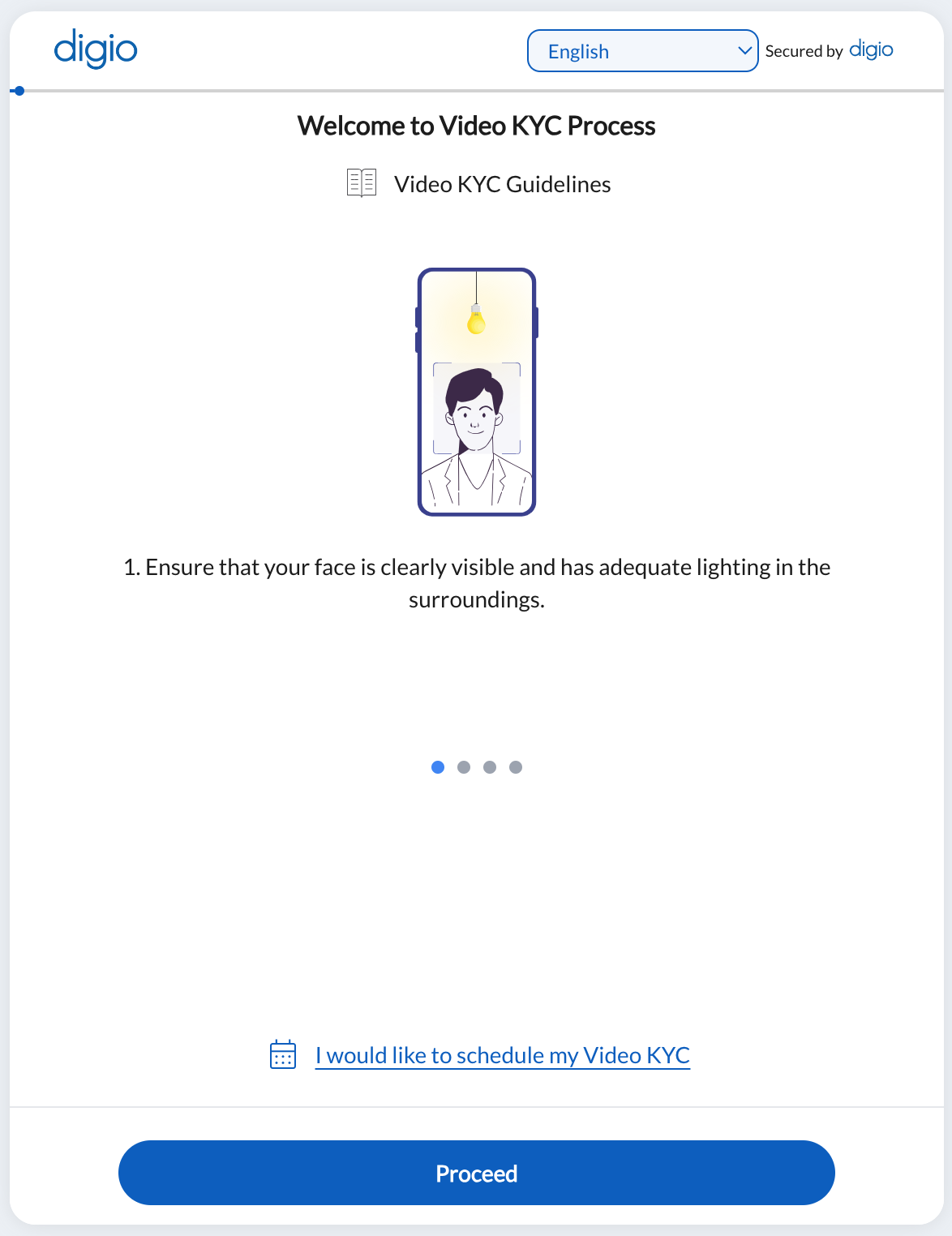
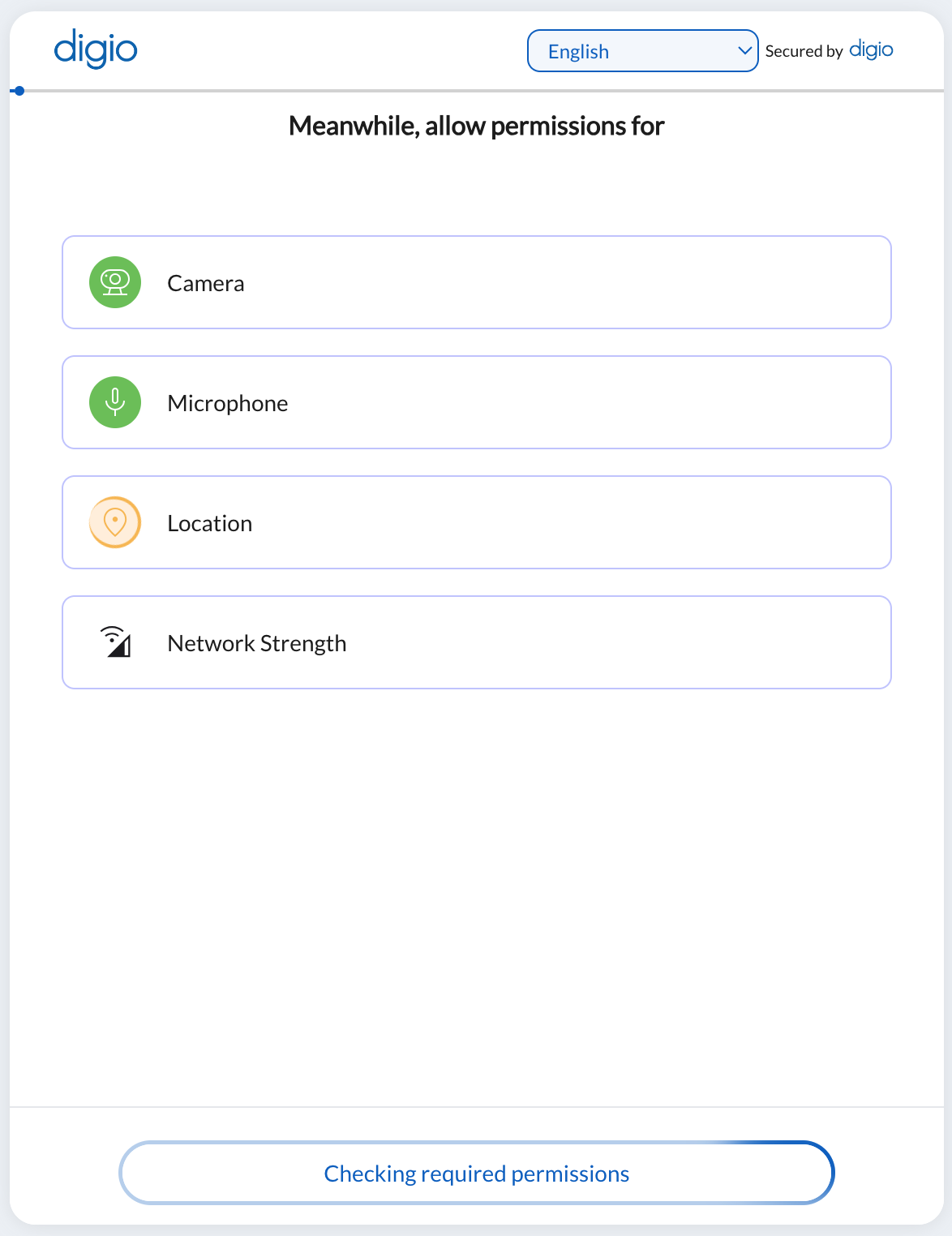
The user side flow is as below: First, the lobby screen is shown with any user instruction that is configured as an add-on. Then the user sees both their and the agent’s video on the same screen and the KYC proceeds.
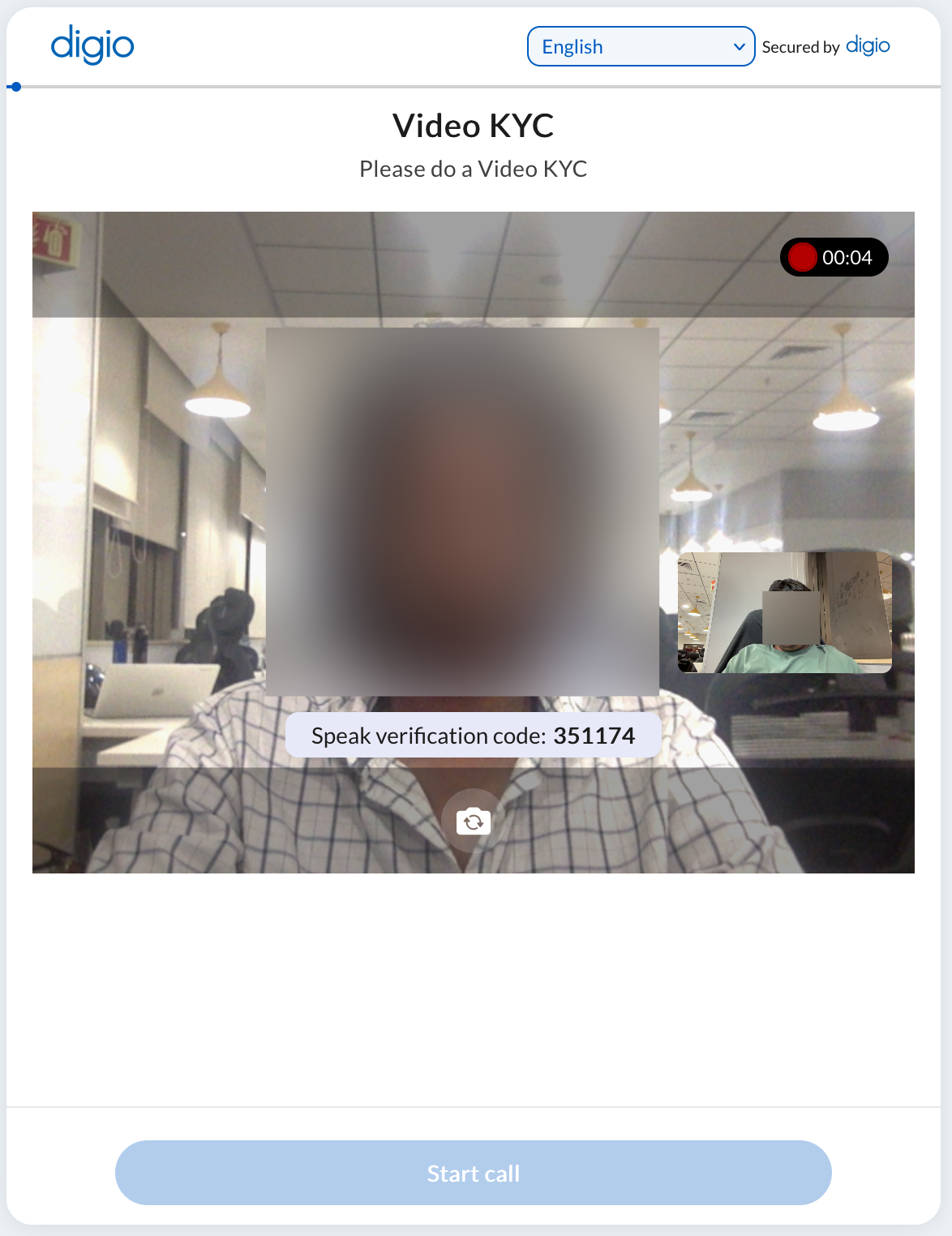
The Corporate’s agent side flow is depicted below:
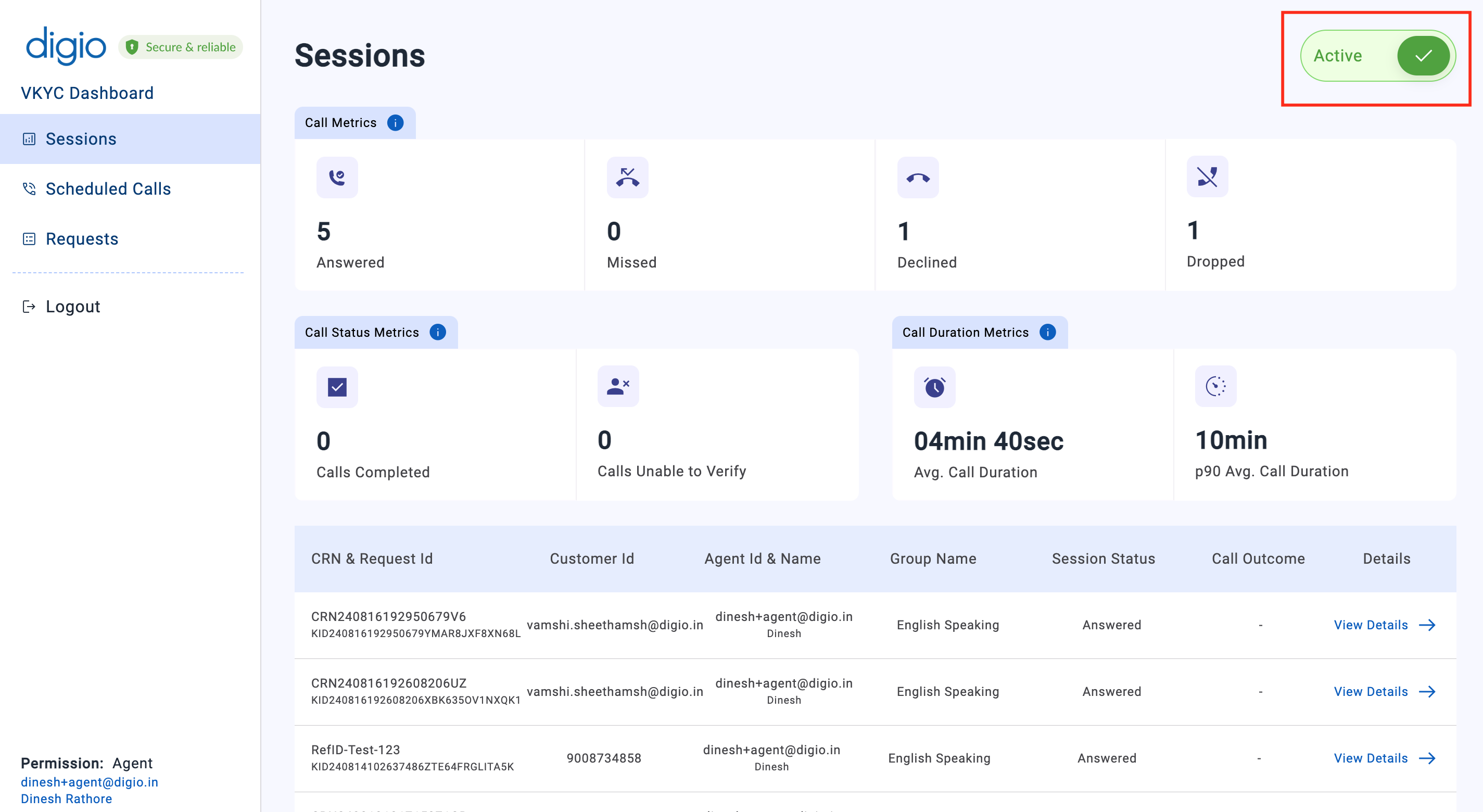
First, the agent logs in, goes to the Requests page and uses the toggle switch on the left of the screen to mark themselves ready and start accepting KYC calls.
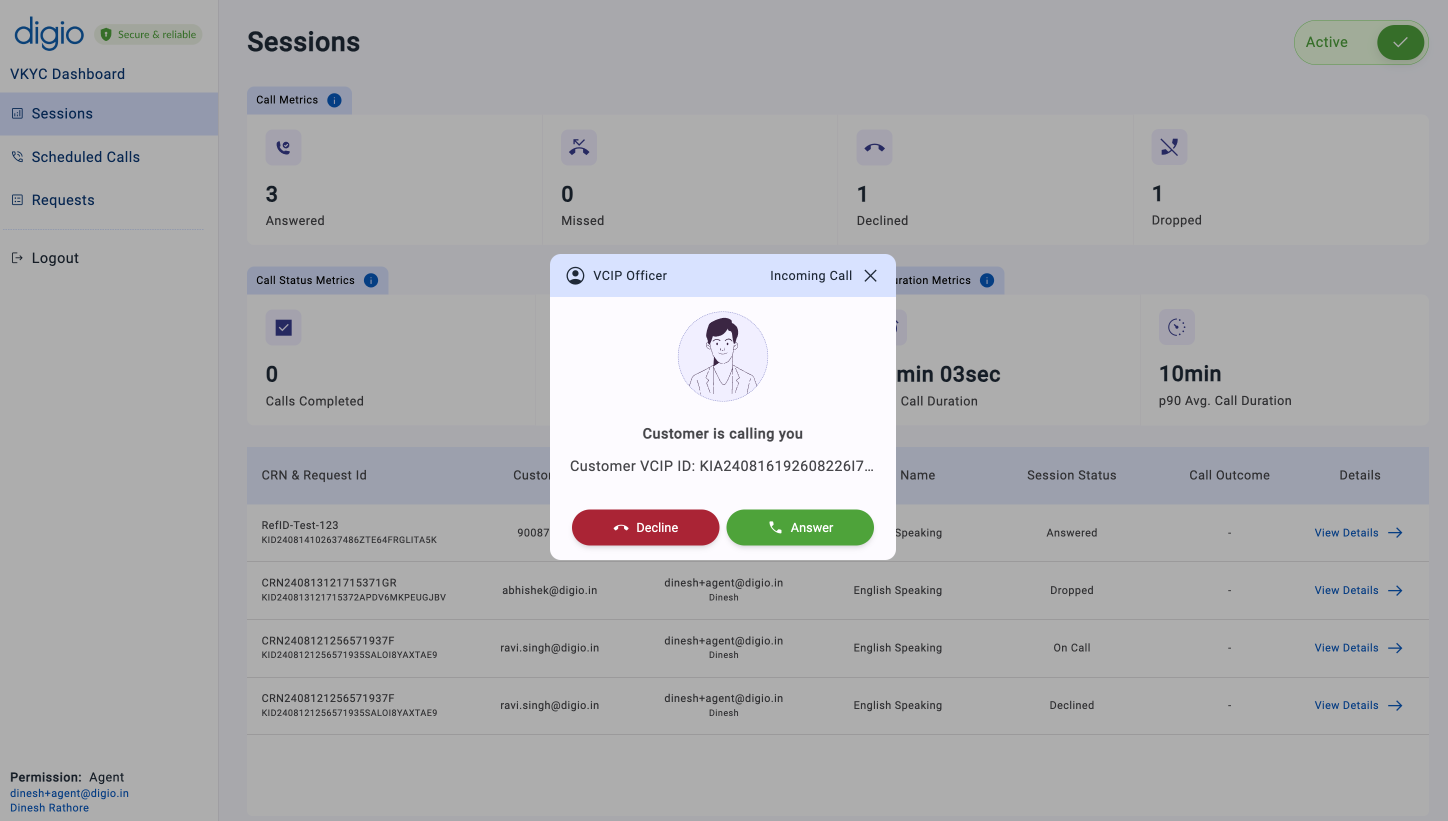
When a user initiates a call and it is allotted to the agent, a modal opens up on whichever screen they are on, with buttons to accept or reject the call.
On accepting the call the agent starts seeing the two way KYC interface.
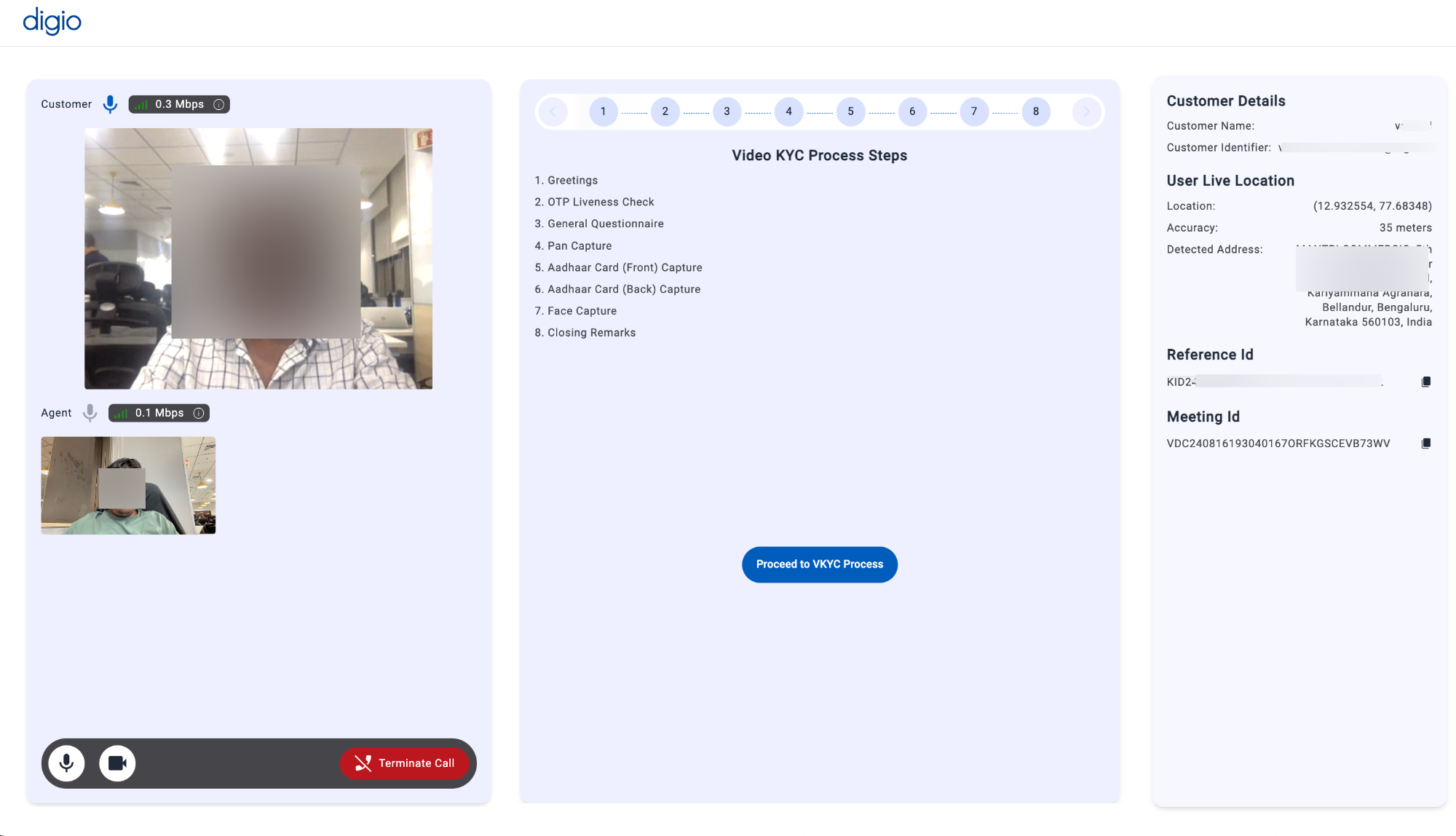
This screen has four main elements:
- The user video stream - this shows the user’s live video stream
- Instructions for the current KYC - this has a list of all the instructions for the agent which he must follow to complete the KYC. These instructions are the addons configured while defining the two way video call.
- The current action - this shows a preview of an actions associated with the current instruction being carried out.
- Client details - these are the details of the client as passed by the corporate. They may be used by the agent to confirm against the user’s documents.
Two way video has four unique addons which are not present for other steps. Let’s go over those taking the example of an actual video call.
- Questionnaire - a questionnaire is a series of items, usually identity documents that are shown and can be marked as ‘Matched’ or ‘Mismatched’. Here is a screenshot of what it looks like:
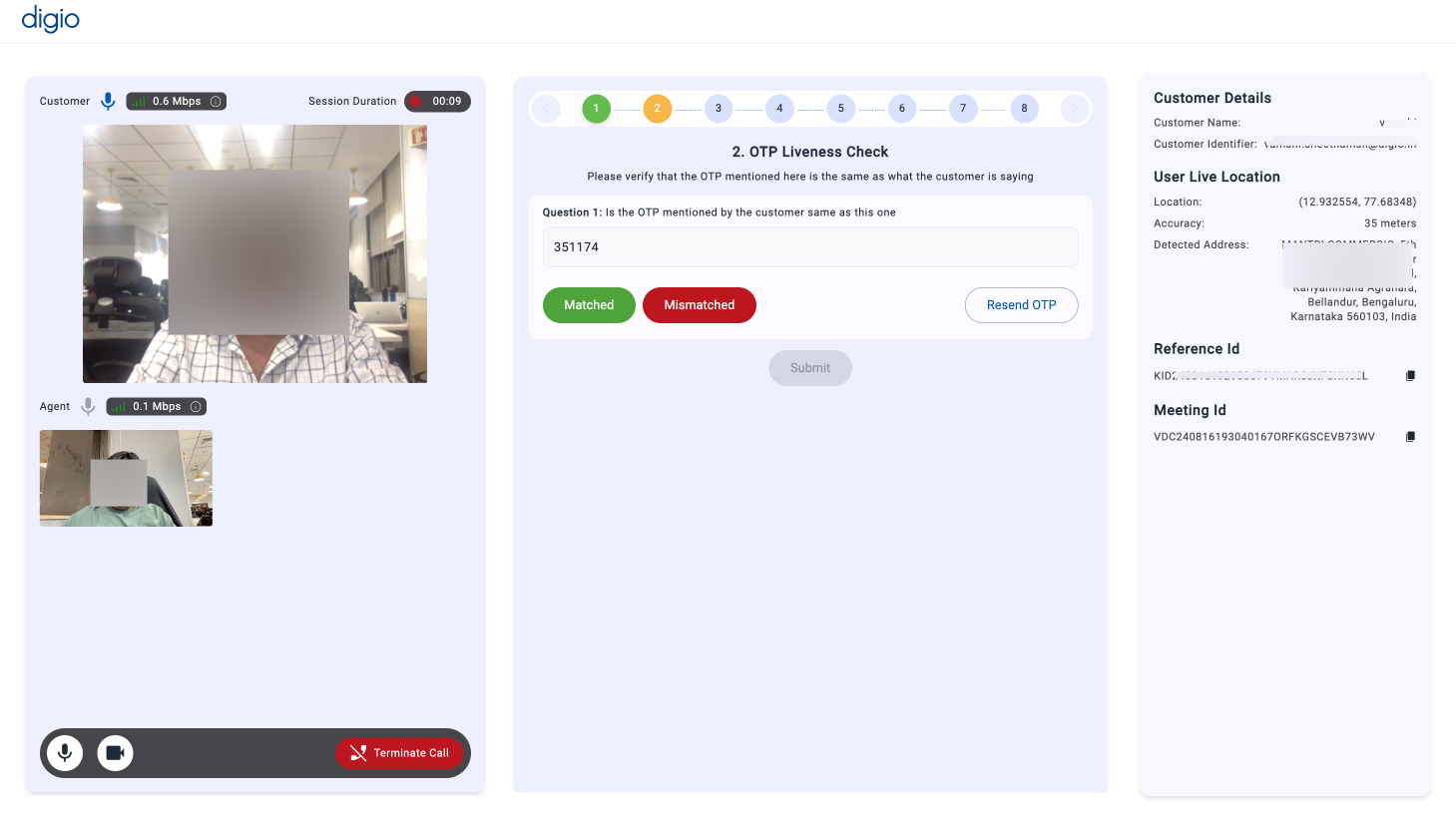
- Agent Instruction - an agent instruction is a text snippet used to inform the agent of an instruction. In the screenshot above, in the ‘Instructions for this KYC’ section, item 1. is an agent Instruction with title ‘Customer Introduction’ and description ‘Greet customer and introduce yourself’
- Frame Capture - the agent can capture a frame from the video feed of the customer to grab an image of a document or their face. This is also preconfigured with a title at the time of step addition to Workflow.
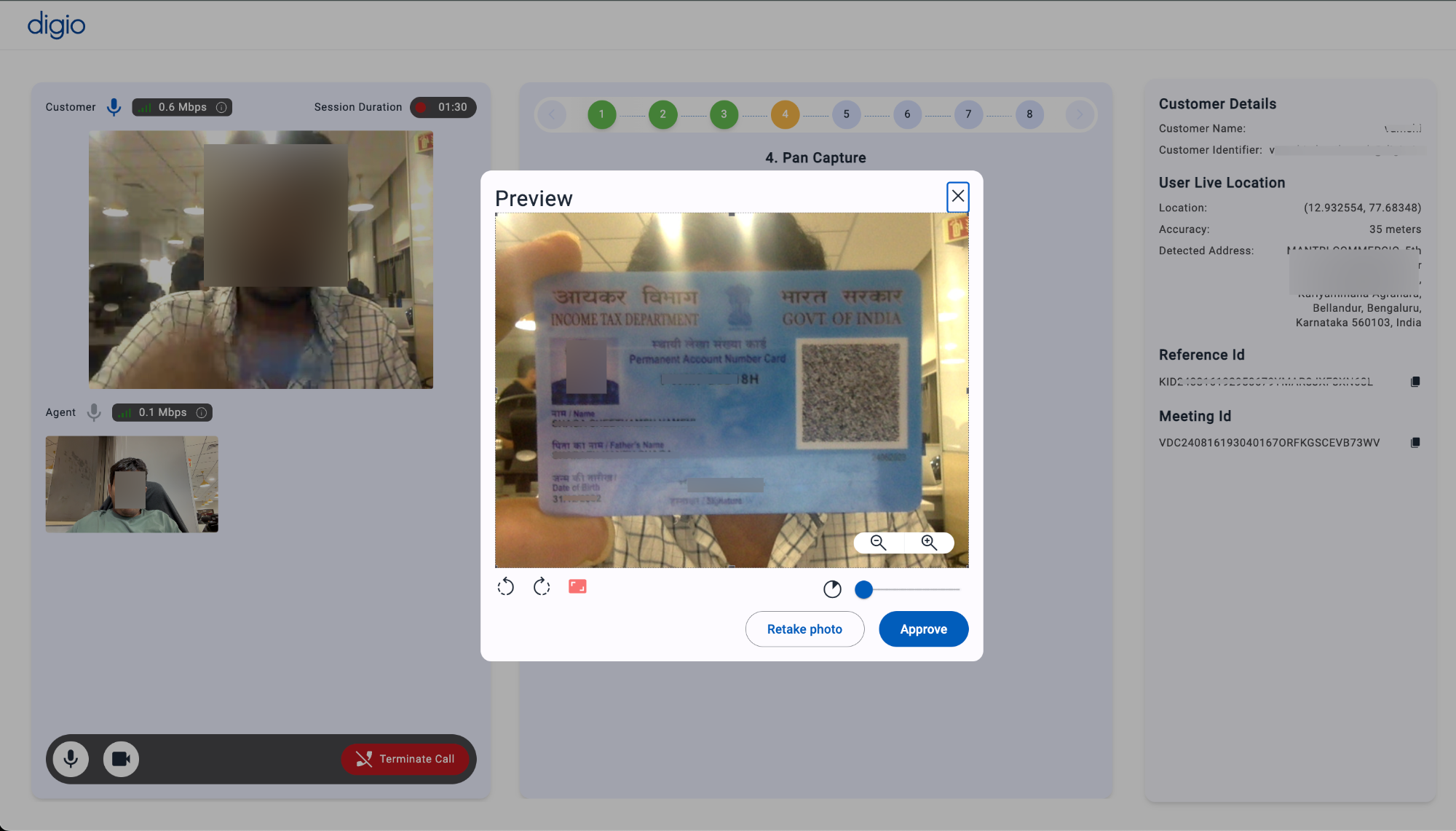
- Agent Comments - this addon can be added to get the agent’s comments on the ongoing KYC.
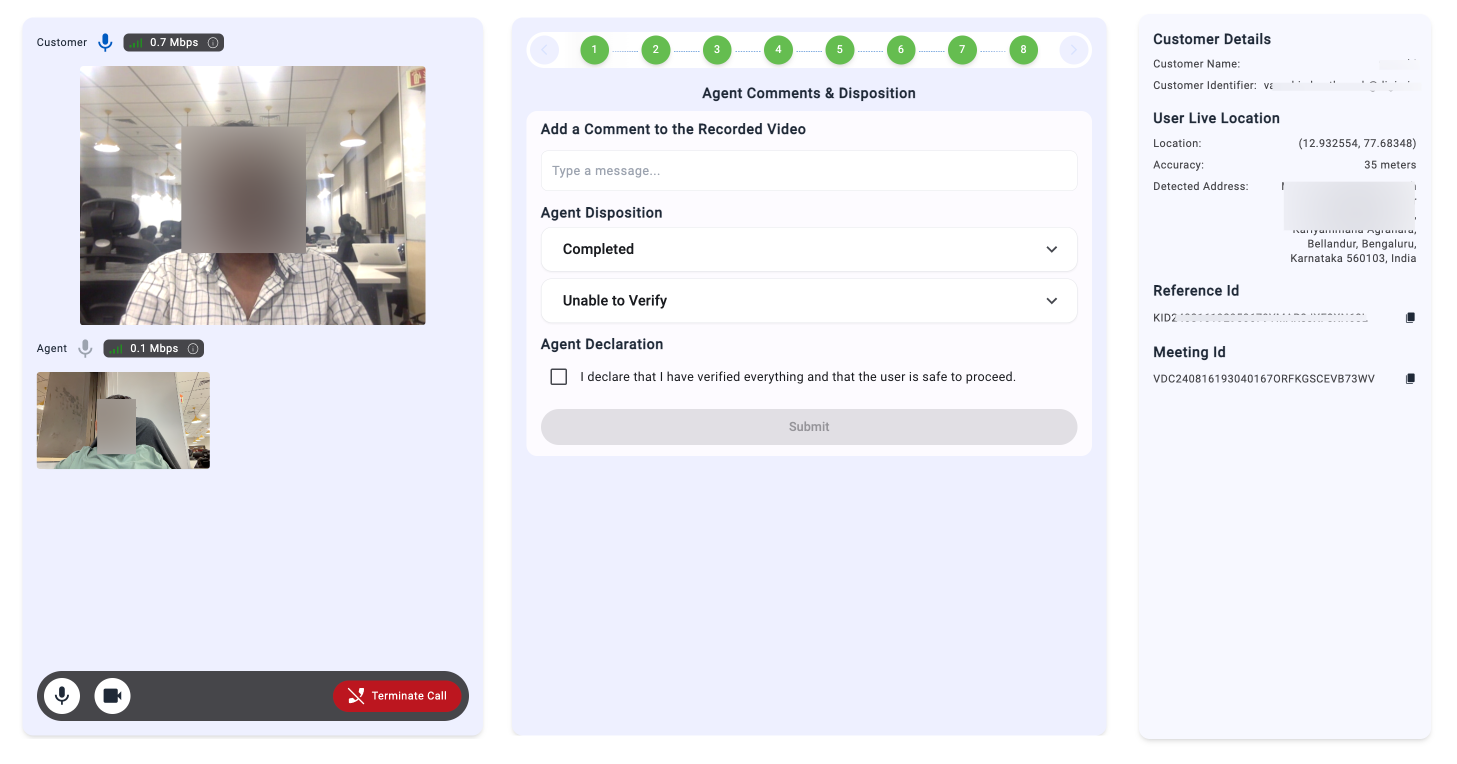
Before entering comments, the agent has to upload and submit the data collected. This ends the call for the user.