The VIDEO step allows the user to record a short video of themselves, with the option of writing and showing or speaking out an OTP that is presented on the screen. The audio OTP is recognised by our platform and verified.
A video can also have FACE_MATCH configured as described here. In this case Certain frames from the video are used.
To add this step:
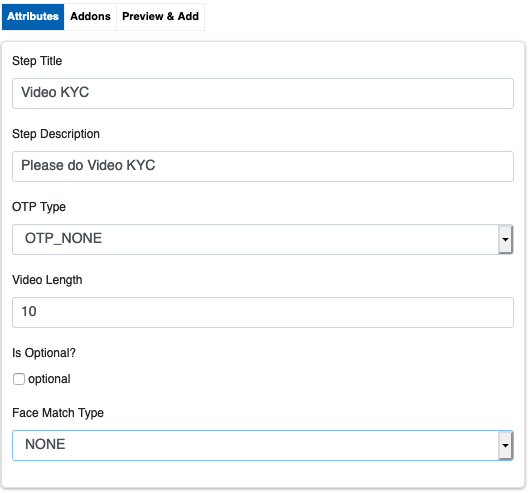
- Select VIDEO from the ‘Add Step’ dropdown.
- Add a title and description that would be shown to the user.
- Select the length of the video in seconds. (Maximum 30 seconds)
- Mark ‘optional’ if this step is to be optional for the user.
- Select OTP Type. OTP_TEXT means that the OTP is to be written on a piece of paper and held up to the camera. OTP_AUDIO means that the OTP has to be spoken by the user and is identified by Digio from the audio recorded (Note: a working mic has to be enabled on the user’s system).
- Select Face Match Type.
- Click ‘Next’ to go to the Addons tab. Select any addons as required and configure them.
- Click ‘Next’ to go to the ‘Preview and Confirm’ tab. Click ‘Add Step’ to add the step to the workflow.
Your video step is now added to the workflow.
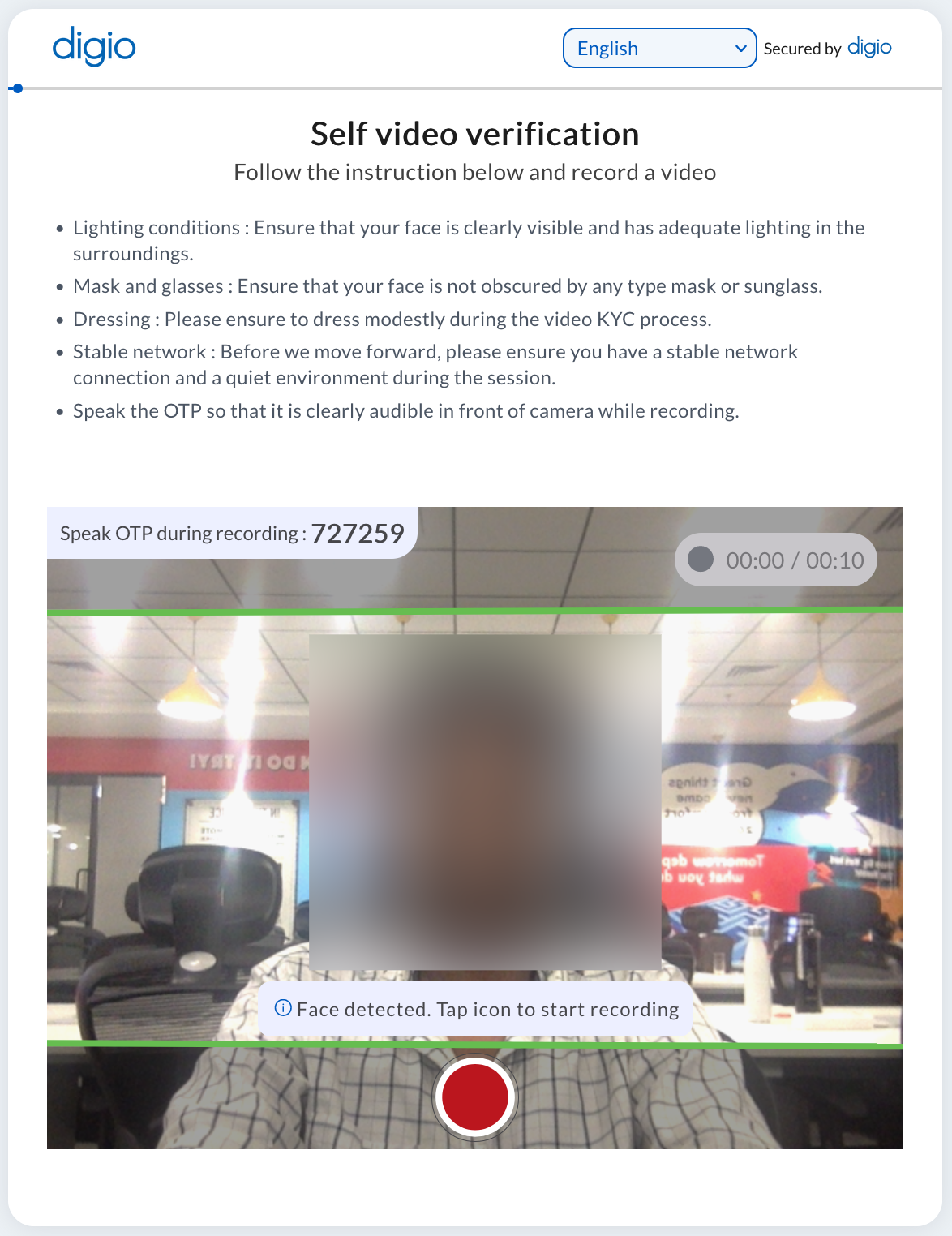
On the user facing side, the record button is shown only when a face is detected in the video feed:
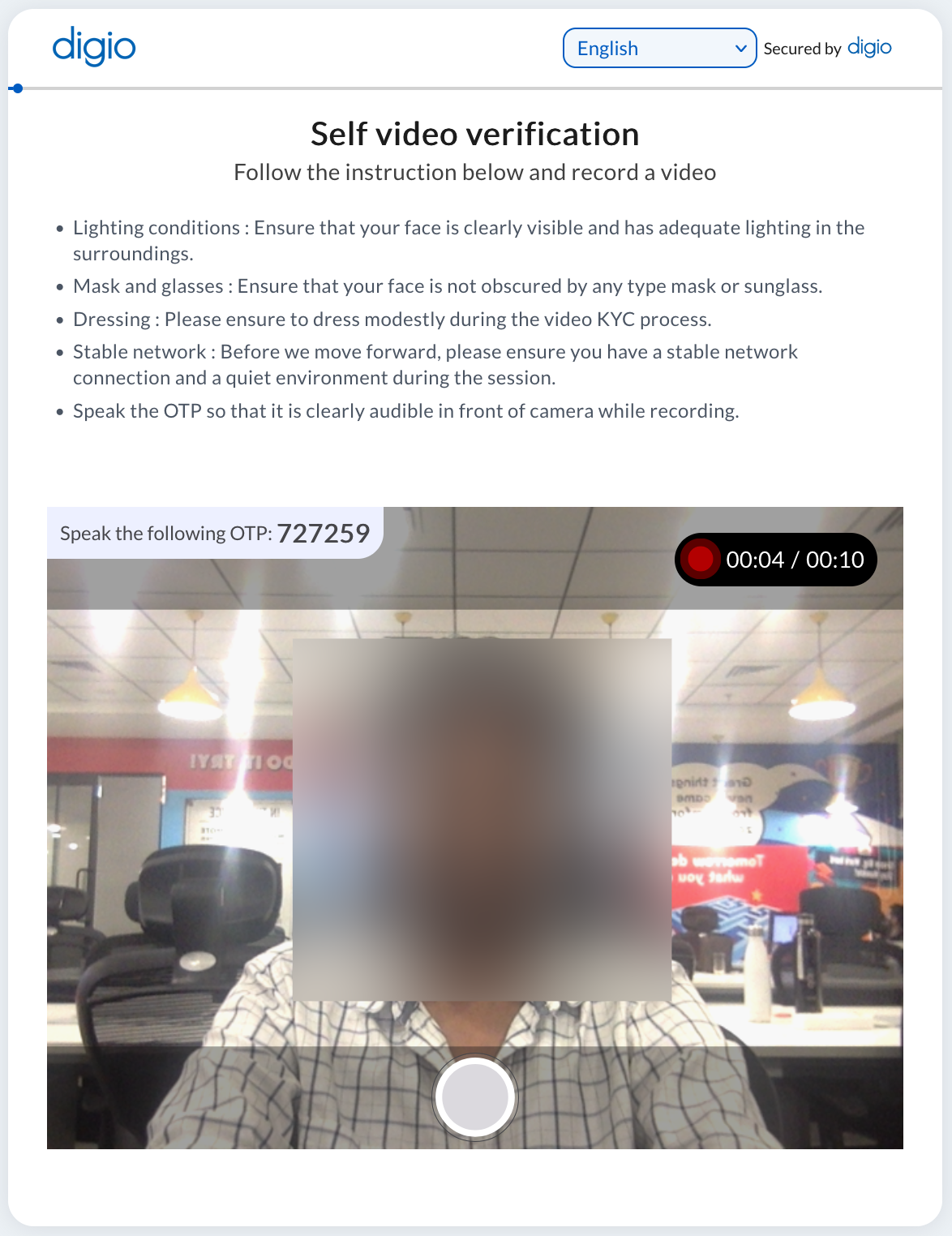
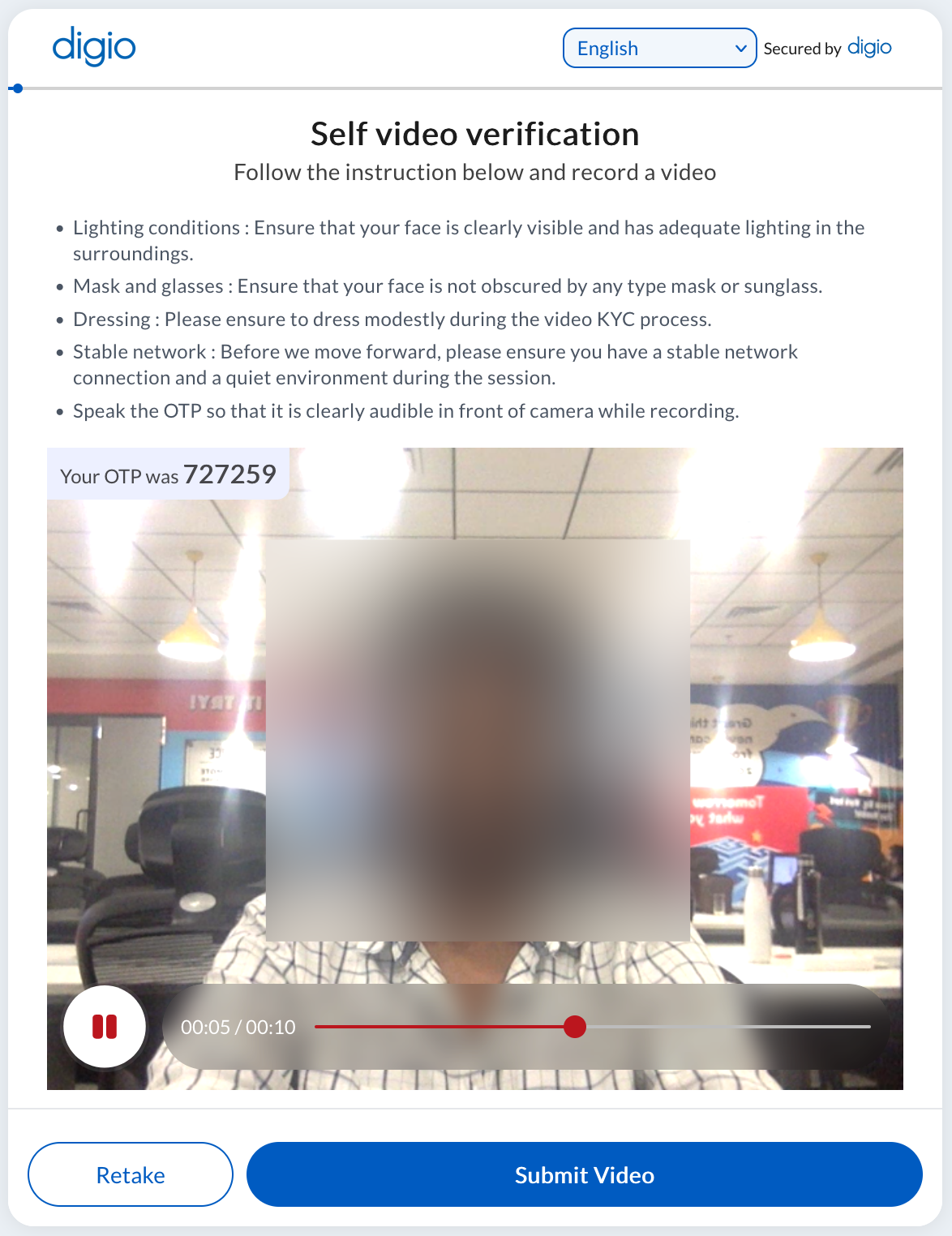
Also, Assistance Instructions may be shown to the user while carrying out this step.
The user may be asked to perform any activity like look left, right etc. to further confirm liveness or any other instruction required.