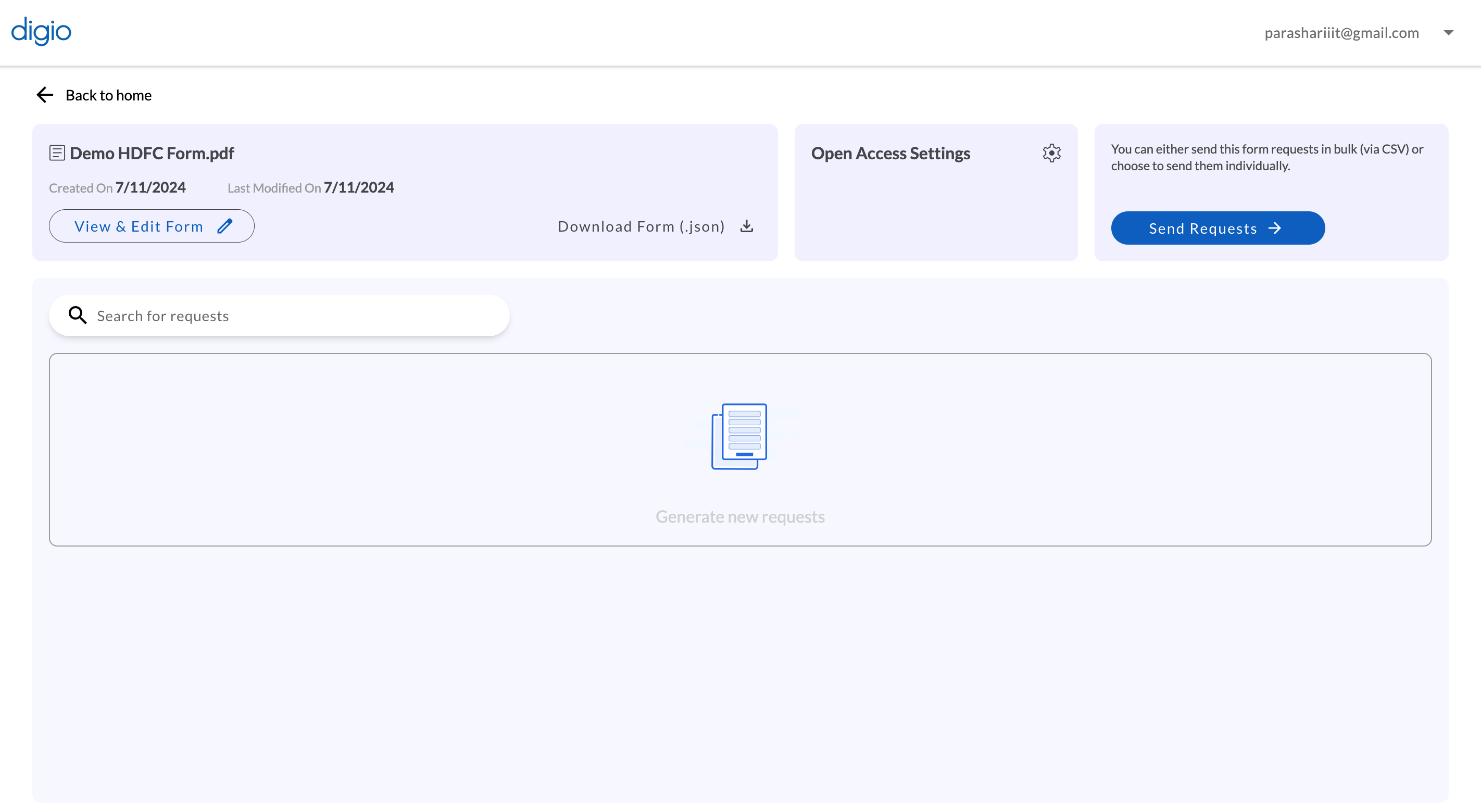
This section describes how to use a pdf or docx template (with slight modifications to the original to match Digio’s specifications) to generate a web form - as part of a workflow or independently. To understand how to create a pdf form so as to generate a web form from it on Digio, refer to the video shared by the Digio team.
- Go to the Custom section on the left navigation panel under the Templates menu. Click on the ‘Upload Template’ button on the centre of the top panel and upload the pdf or docx template.

- After uploading the Template, assign all signers
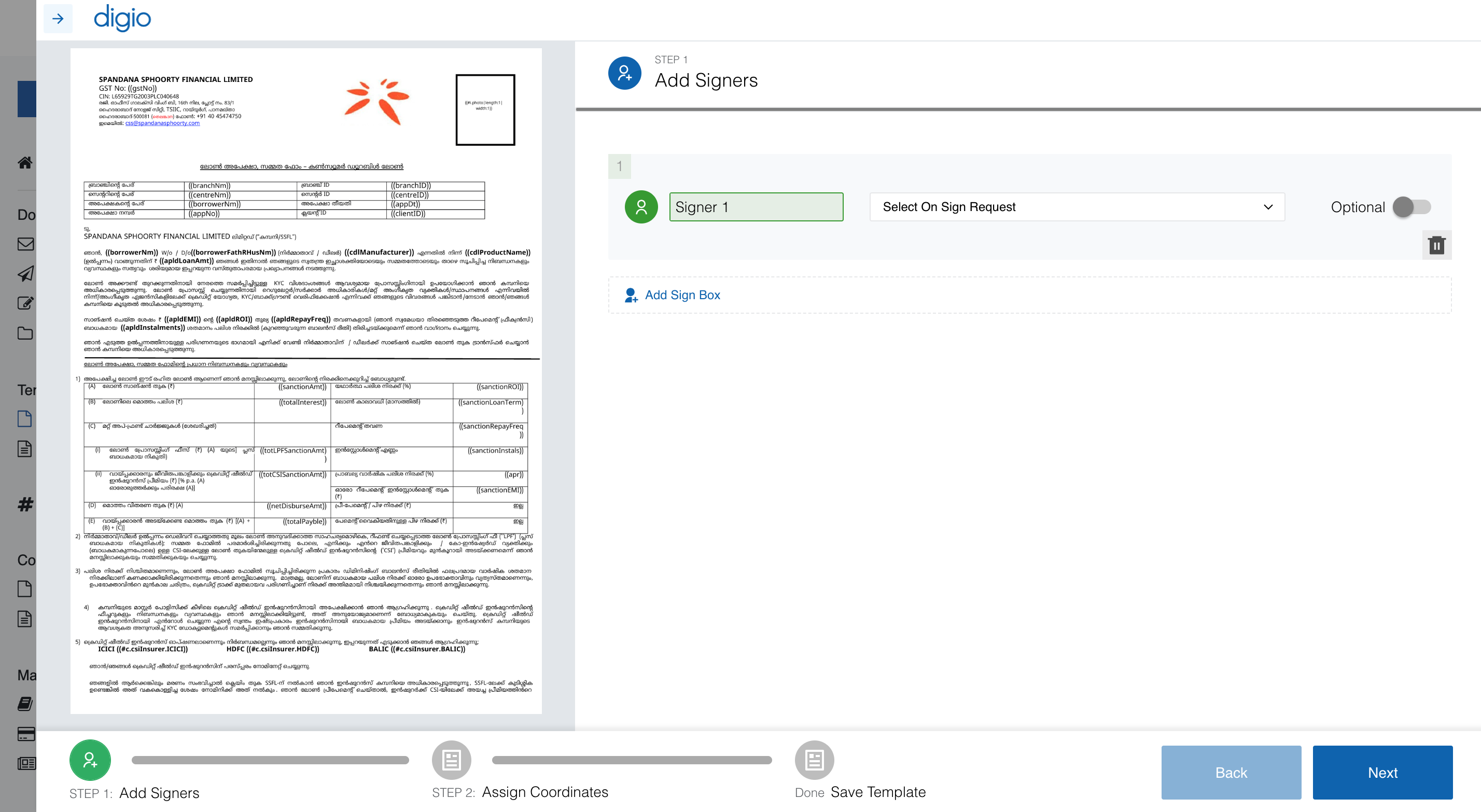
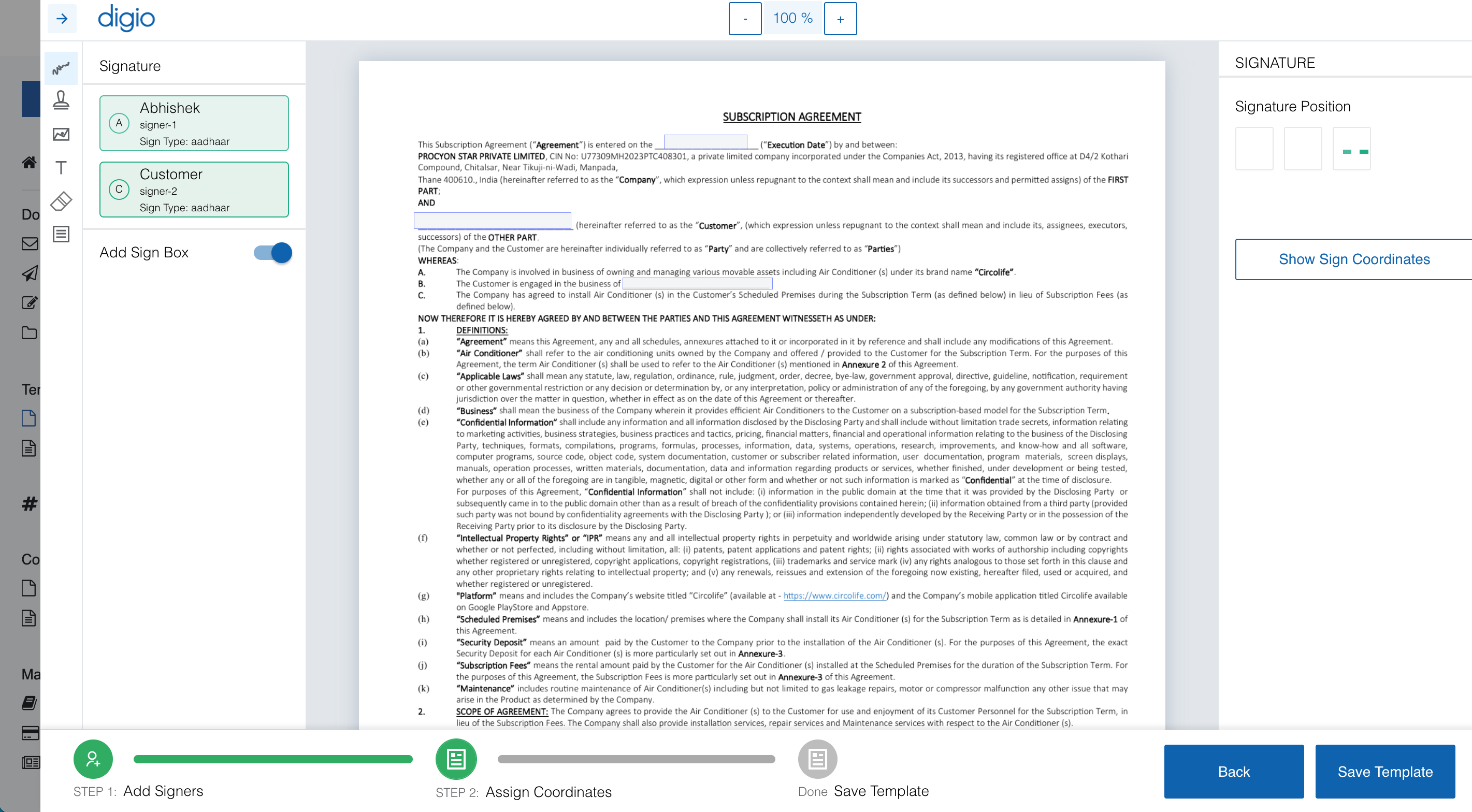
- Click on the button on the top right to add signers and on ‘Click To Add Signature’ button to add that signer’s signature box on the page. Click and drag the boxes to move them to the appropriate area on the document. The boxes may be resized if needed. Save the template and close the drawer. Do not generate a document.
- Go to ‘Form Center’ under the Forms section on the left navigation panel.
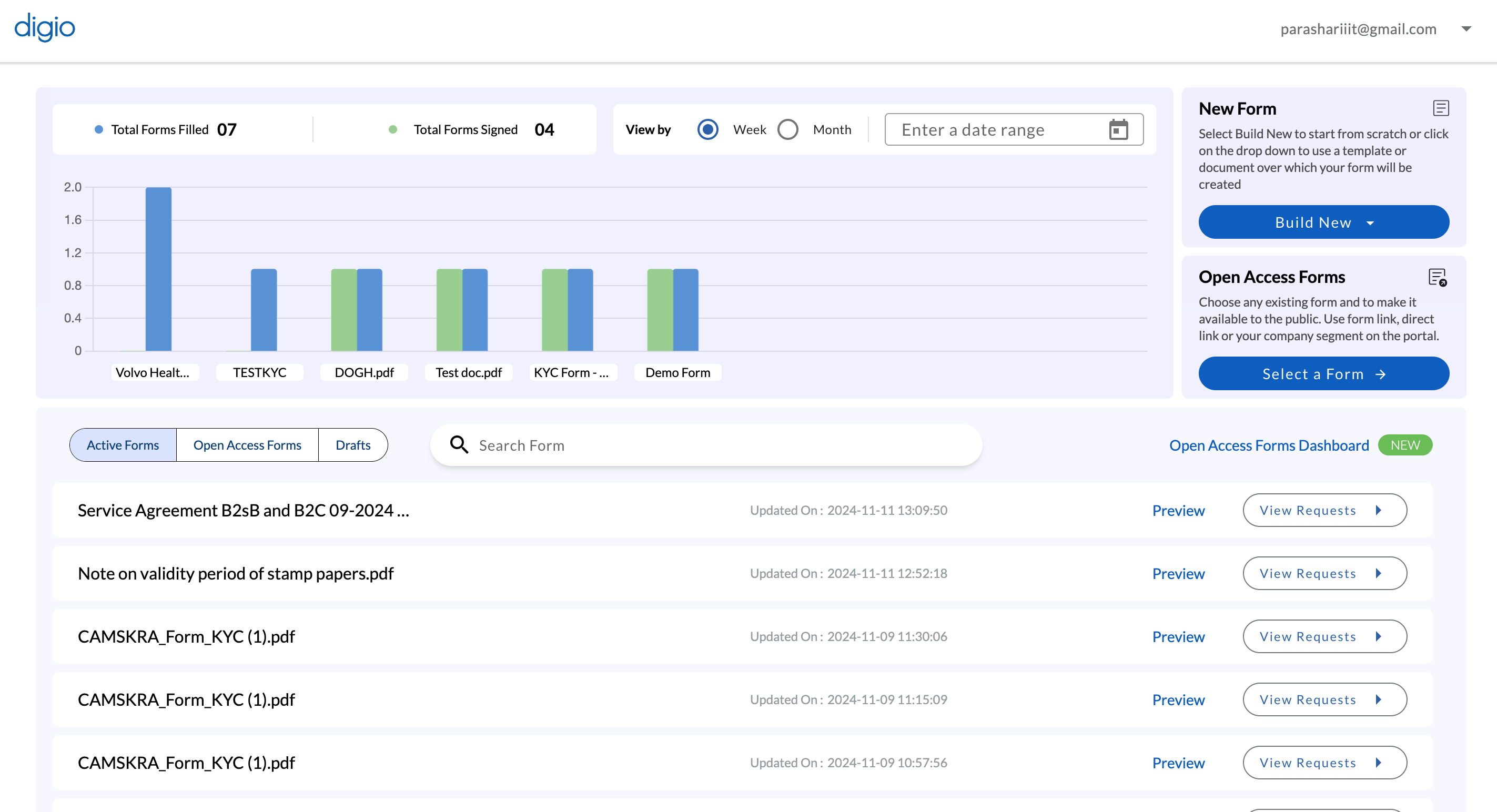
- Click on the ‘Create Form from Document Template’ button. The following screen opens in the drawer:
-
Enter an Identifier (no spaces) to refer to the form, a name, and an optional description. Click Next.
-
All the templates that can be used to generate a form are shown with a checkbox next to them

-
Select any number of templates to generate a form. A preview of the selected templates will be shown as below:
-
Order the templates as required and click ‘Create Form’
-
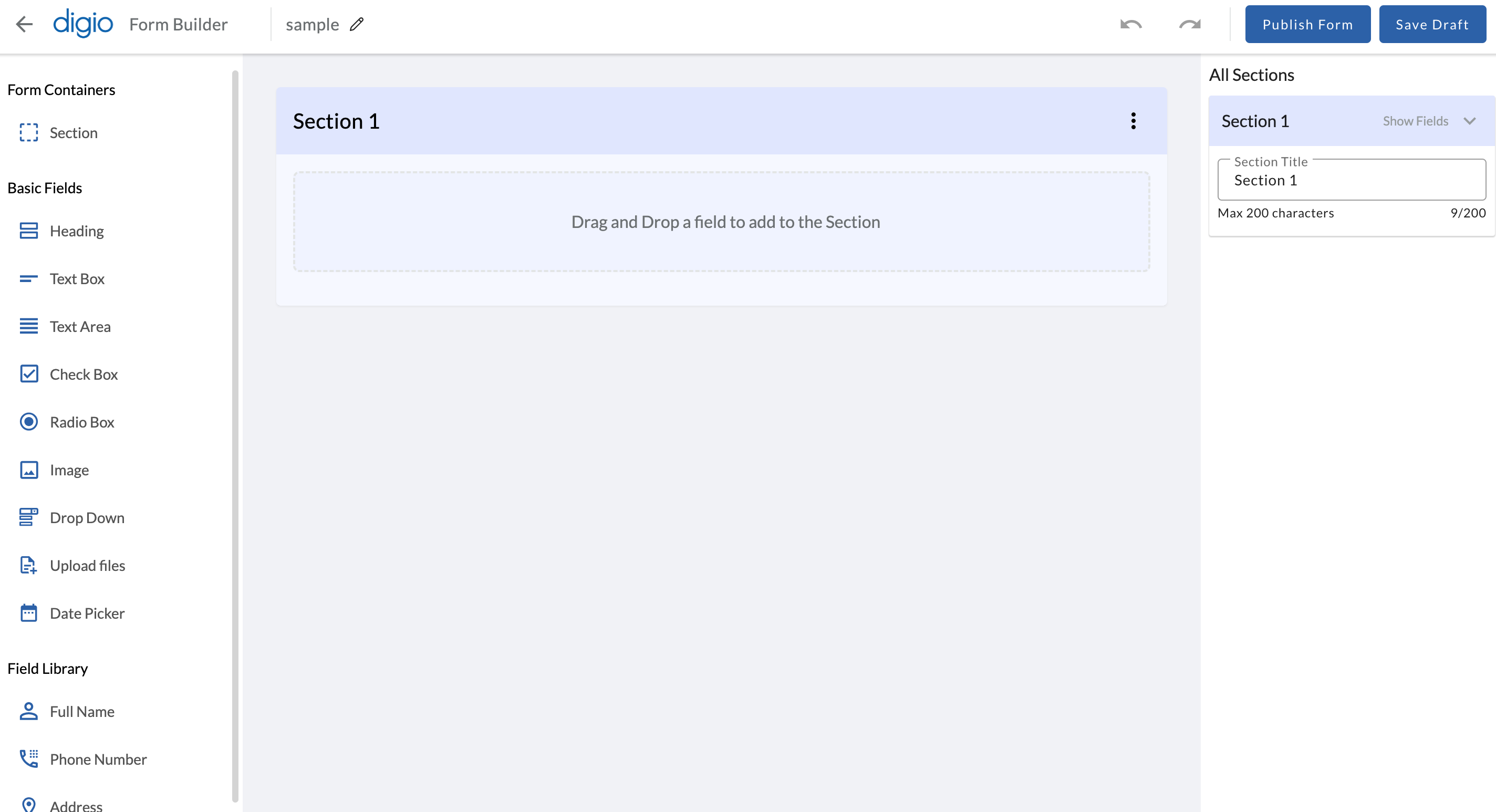
Now, the Form Builder UI opens up which allows creating sections in the form and rearranging the fields.
-
Create sections by clicking on the ‘+ Add Section’ button and enter a name, then save.
-
Drag fields across sections to build the form required. Rename the fields as they need to be labelled in the web form. Click ‘Update Form’ to save the form as is.