The ID_PROOF step is used to ask the user to upload the image of an Aadhaar card, Voter ID card, Passport, Vehicle RC or Driving License for verification. Image-level detection and Optical Character Recognition (OCR) of ID card data can also be done.
Here is a table of the possible configuration values for this step:
| Attribute Name | Possible/Sample Values | Description | |
|---|---|---|---|
| 1 | Step Name | PAN Verification | Name of the step as shown to the user. |
| 2 | Step Description | Please upload a clear image of your PAN card. | Description of the step as shown to the user. |
| 3 | Strict Validate for Image Type | PAN, VOTER, AADHAAR, PASSPORT, DRIVING_LICENSE, VEHICLE_RC | The type of document to validate the input against. |
| 4 | Image Upload Mode | FRONT_ONLY, FRONT_BACK | Sets whether only the front or back or both sides of the ID document are asked for. |
| 5 | OCR Required | (Checkbox checked) ID analysis required, (Checkbox unchecked) ID analysis not required. | Configures whether to perform OCR to extract relevant data fields from the ID document. |
| 6 | OCR Data update allowed | (Checkbox checked) OCR Data update required, (Checkbox unchecked) OCR Data update not required. | Configures whether to allow the user to correct the OCR data in text input fields, Update is recorded along with OCR data. |
| 7 | Optional | (Checkbox checked) optional, (Checkbox unchecked) mandatory | Configures whether the user has to mandatorily perform the step or not. |
| 8 | Face Match Type | MATCH_REQUIRED, SOURCE, NONE | Configures whether to match the face in the id document of the current step and if yes, how. Refer here for details. |
Here are the strict validations possible for a step of type ID_PROOF:
| Strict Validation | Description | OCR Fields Extracted | |
|---|---|---|---|
| 1 | PAN | Allows uploading image of PAN card | Name, Father’s name, Date of Birth, PAN number. |
| 2 | AADHAAR | Allows uploading image of Aadhaar card. Aadhaar number on image is masked. | Aadhaar number, Name, Gender, Address, Year of Birth, Address, Face Image. |
| 3 | VOTER_ID | Allows uploading image of Voter ID card. | Front: Name, Father’s name, Date of Birth, Voter ID number, Date of Issue, Face Image Back: Address. |
| 4 | PASSPORT | Allows uploading image on Indian Passport. | Name, Father’s name, Date of Birth, Passport number. |
| 5 | VEHICLE_RC | Allows uploading the Registration Certificate of a vehicle as issued by an Indian RTO. | Name, Father’s name, Date of Birth, Registration number. |
| 6 | DRIVING_LICENSE | Allows uploading the Driving License of an individual as issued by an Indian RTO. | Date of Birth, License Number. |
The step is added as follows:
- Select ‘ID_PROOF’ in the ‘Add Step’ dropdown.
- Provide a title and description relevant to the document being requested.
- Select the type of ID to be uploaded.
- Select Image Upload Mode. If only the image of the front of the ID is required, select FRONT_ONLY. If both sides are required, select FRONT_BACK
- Check ‘id_analysis_required’ under ‘OCR Required’ if you’d like the fields of the document recognised and prefilled in text boxes via OCR.
- Check ‘allow_ocr_data_update’ under OCR Data Update Allowed if you want to allow the user to give a suggestion/correction on the text that is pulled via OCR from the ID. Both the OCR data and the data entered by the user is shown.
- Check ‘optional’ if the step is to be optional for the user.
- Configure the FACE_MATCH as SOURCE, MATCH_REQUIRED or NONE as explained here
- Click ‘Next’ to go to the addons tab. Add user instruction, user consent or Click ‘Skip’.
- Preview the configuration and click ‘Add Step’.
Your ID_PROOF step is added successfully to your workflow.
Configuration pictured below:

Here is the video guide to configuring this step: https://youtu.be/mCzb_kBQh44
The user side screens for each strict validations type:
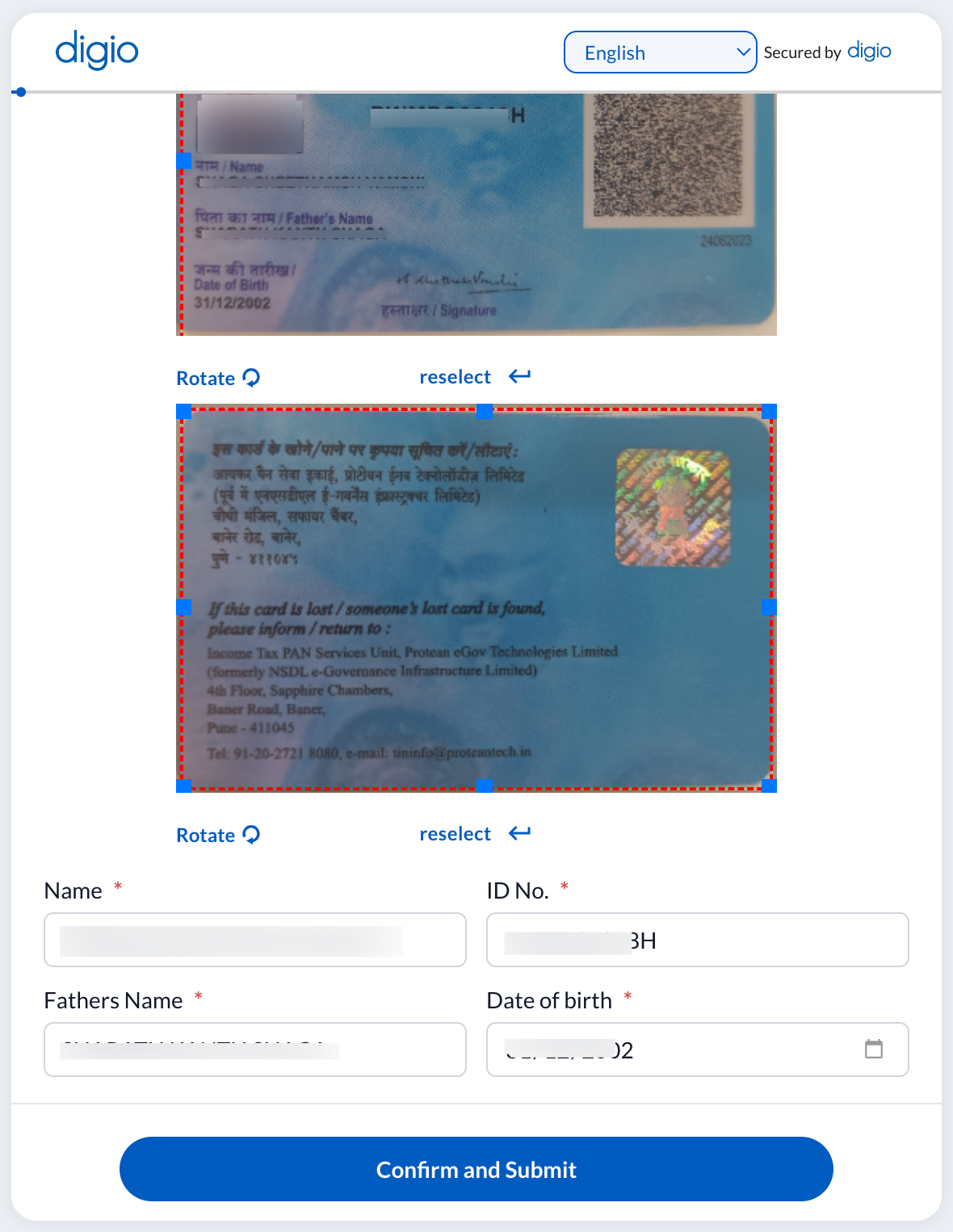
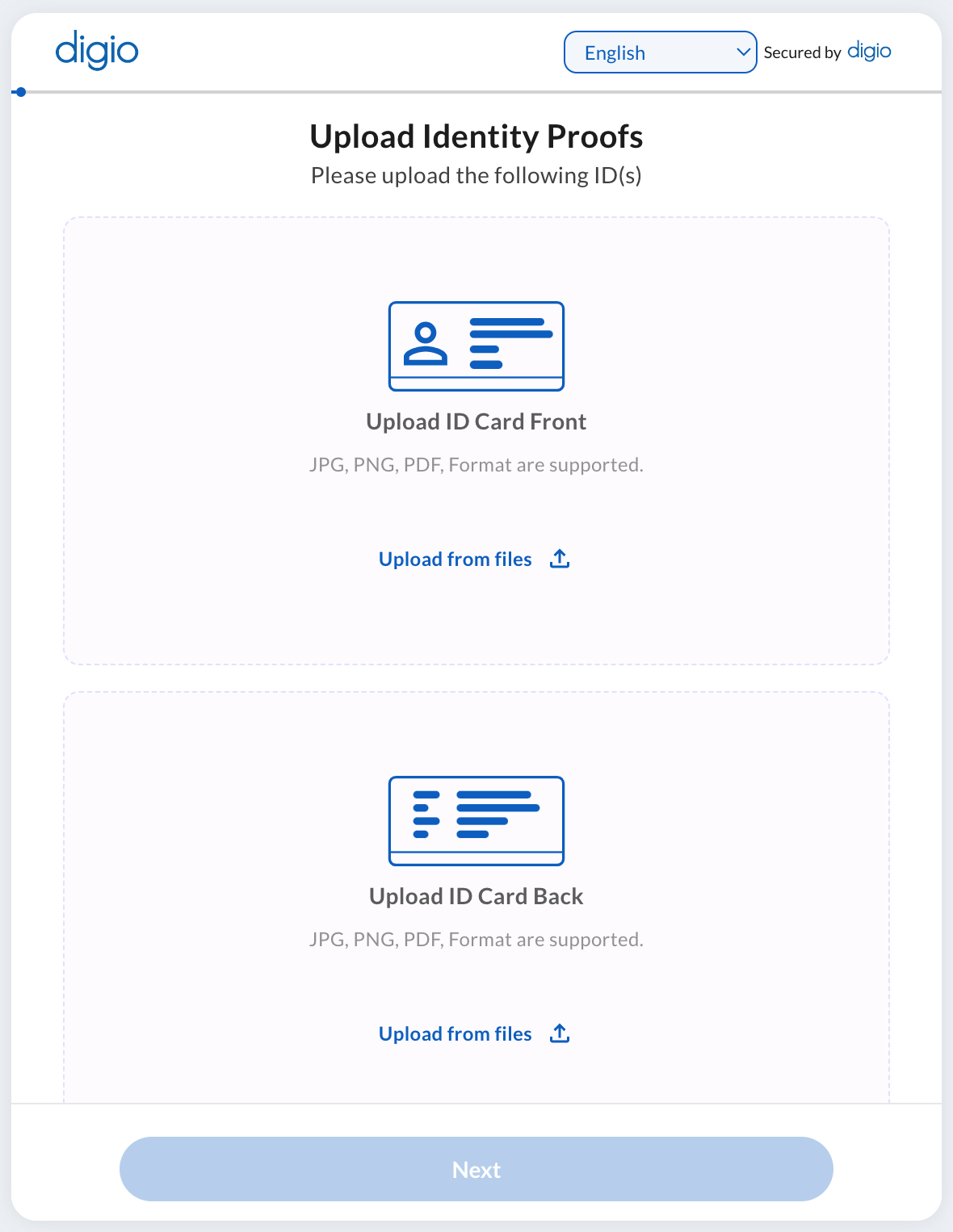
ID CARD ( PAN for both front and back, two boxes appear. For only front only one box will appear)
Data suggestion after OCR: