DigiLocker is an initiative of the Govt. of India by the Ministry of Electronics and Information Technology (MeitY) for providing citizens access to authentic digital documents via a digital document wallet. The fetched documents via DigiLocker system are issued by the issuing authority and digitally signed by them.For eg: Aadhaar is directly issued by UIDAI and the document is digitally signed by UIDAI. A step of type DIGILOCKER allows a corporate to access the Aadhaar, PAN, Driving License, Vehicle RC, Ration Card, 10th/12th Marksheet of a user from DigiLocker and use it for verification.
To enable Digilocker on the workflow builder:
- Select ‘DIGILOCKER’ from the ‘Add Step’ dropdown.
- Under the Attributes tab, add a Title and Description for the step. This is what the user is shown when they view the workflow. Also select whether this step is optional (tick checkbox marked ‘Optional’ if yes).
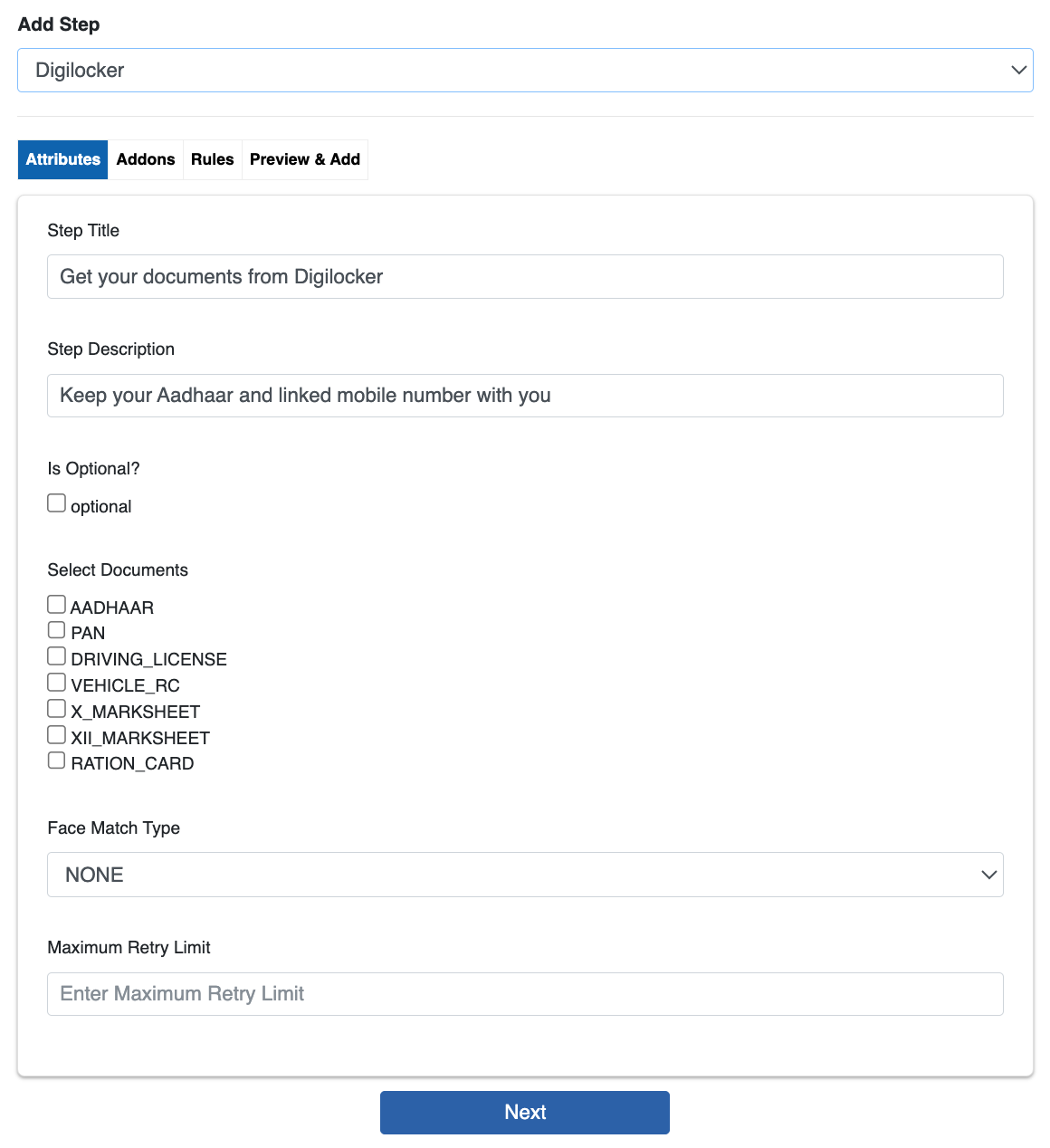
- Select whichever documents are to be fetched among Aadhaar, PAN and Driving License. Selecting more than one document is allowed. All selected documents will be fetched if available. Click ‘Next’ to go to the addons tab.
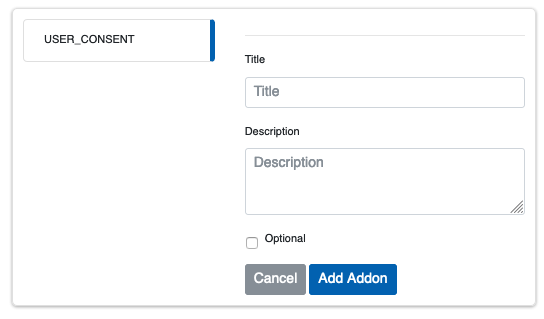
- In the addons tab, add USER_CONSENT, if needed. Enter values and click Add Addon. Click ‘Next’ to go to the Preview tab. Preview the configuration and click ‘Add Step’ if it is as expected.
Your Digilocker step is now added to the workflow. Video guide for configuring this step: https://youtu.be/fXdU-yVc12Y
The user side of this step is as follows:
- User is shown the following screen from where they are redirected to the DigiLocker website on the same screen.

- They log in to DigiLocker with their aadhaar no. or in case of a new user, their Digilocker account is made as part of the process.
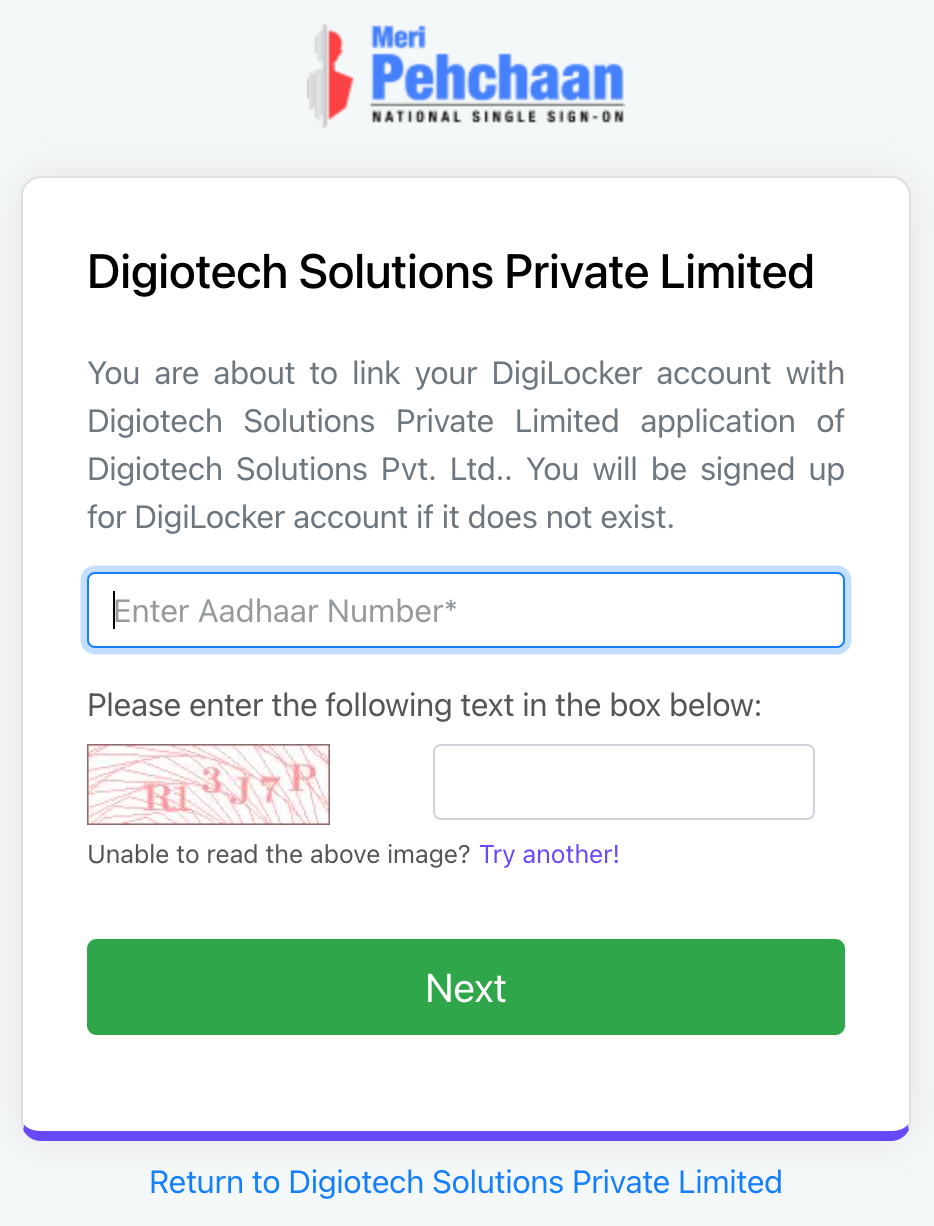
- User will receive the OTP from UIDAI on the number as registered with Aadhaar.
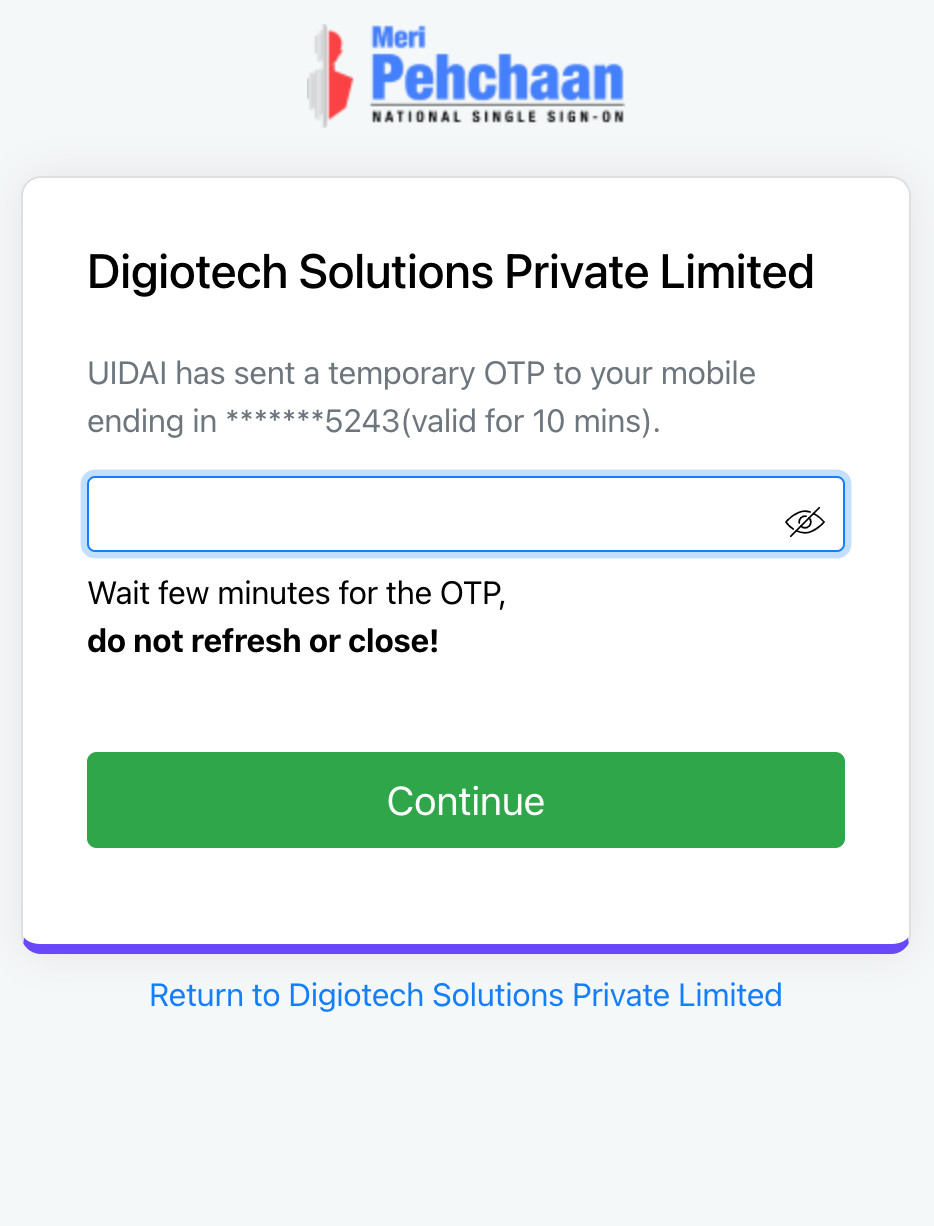
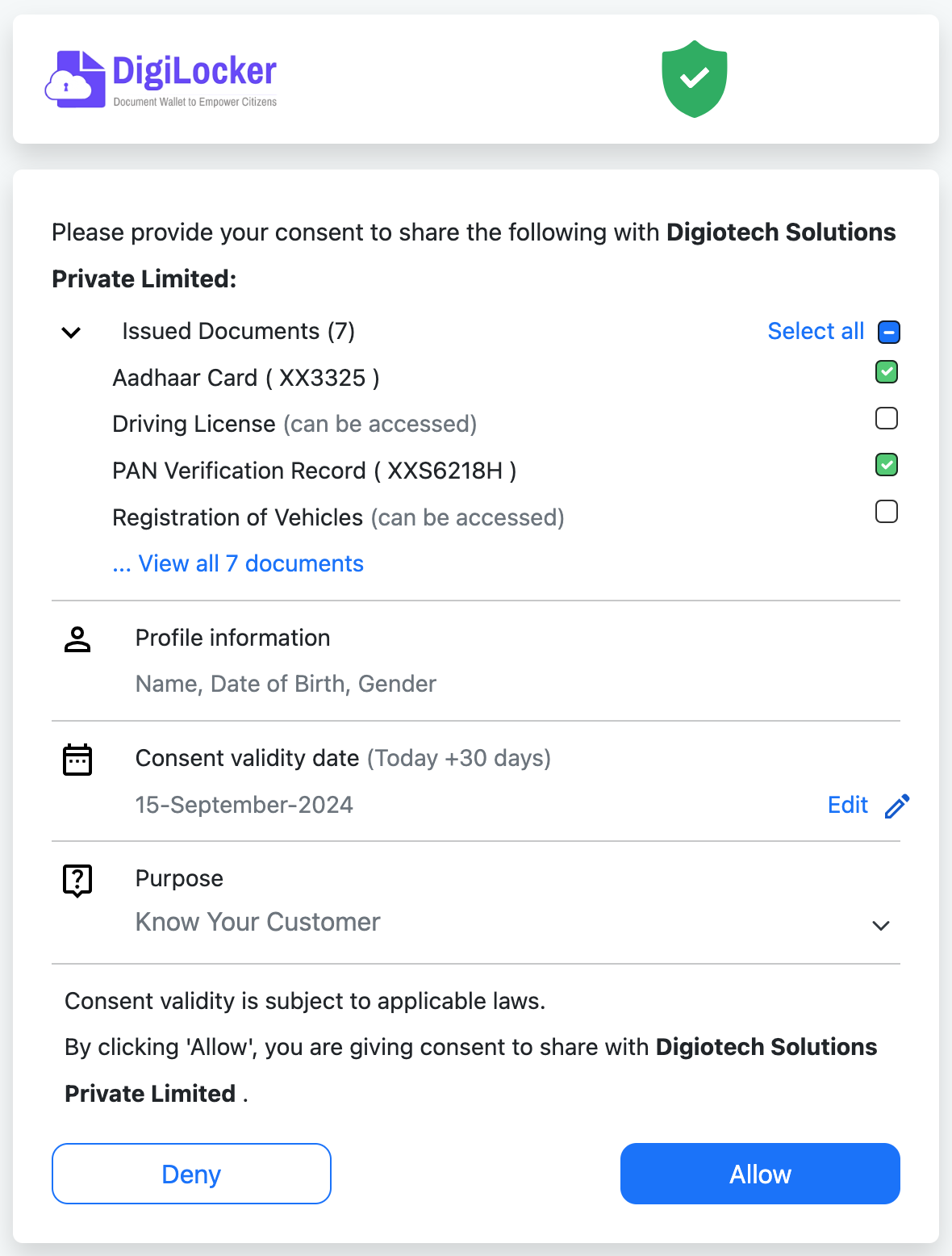
- The user is taken to DigiLocker’s consent page to share details with digio for fetching IDs.
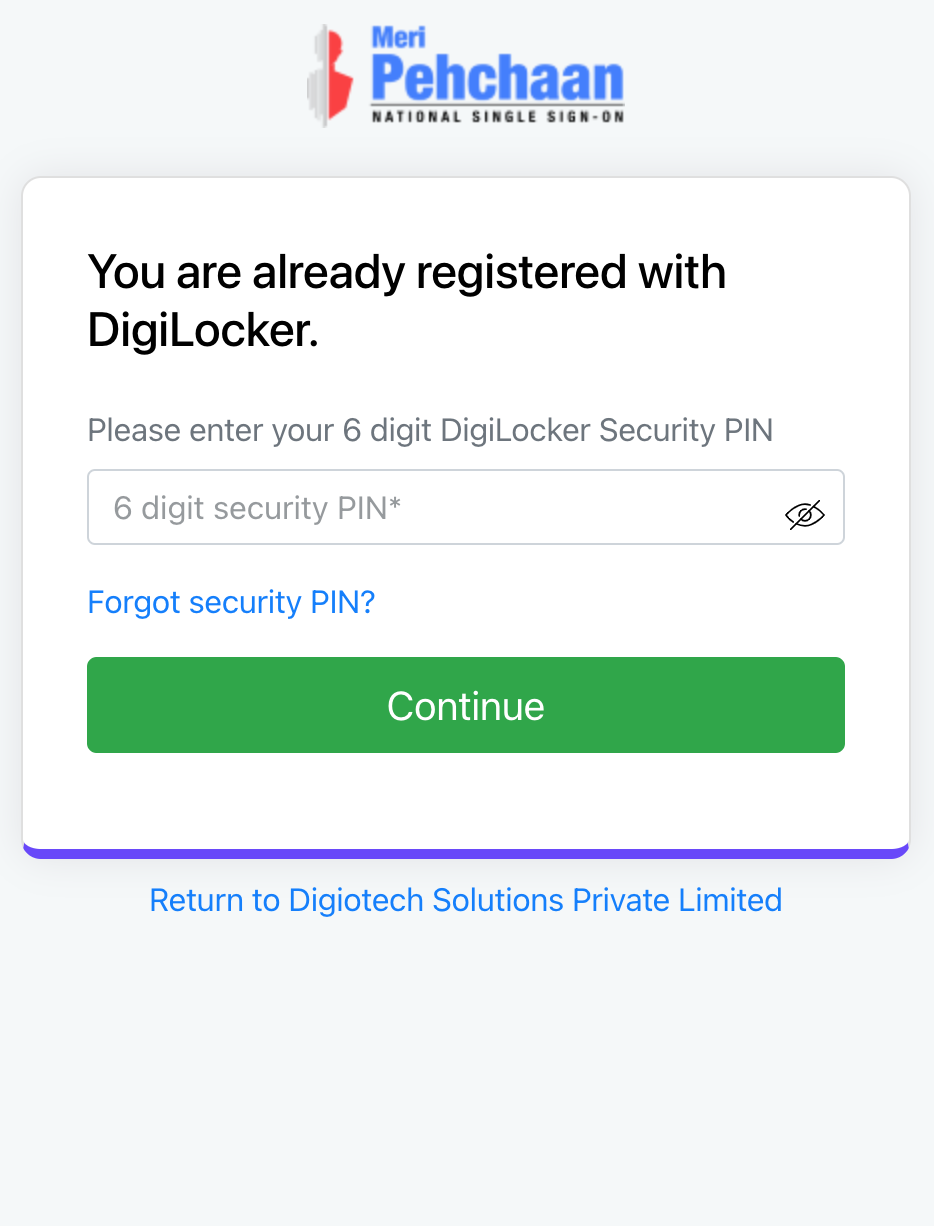
Post giving consent, the IDs are fetched and the step completed. To Note: For a new user, the documents have to be fetched into the user’s account as a one time activity.
[NOTE] In case the type of document requested is not present on DigiLocker for a user with an existing account, the user has the option of entering their ID number and adding the document in the same seamless flow - example of PAN fetch below. (OTP Auth in case of Aadhaar fetch)