For any workflow, an individual request can be triggered by filling in the request creation form. These same fields can be input to generate requests in bulk using the upload csv method.
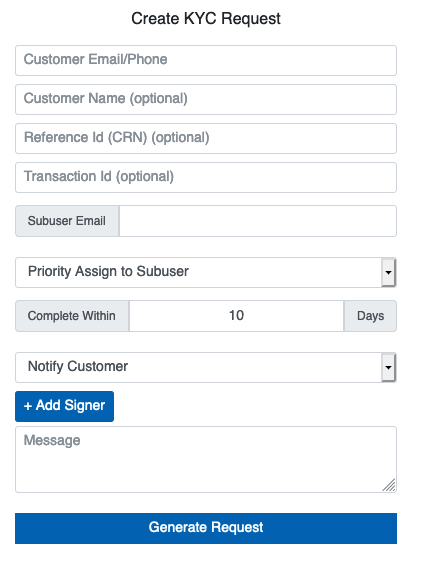
The fields are described below:
| Field Name | Mandatory/Optional | Description |
|---|---|---|
| Customer Email/Phone | Mandatory | The email address/mobile number to which the KYC request would be sent. |
| Customer Name | Optional | The name of the customer. Optional, but recommended for future ease of resolution. |
| Reference Id (CRN) | Optional | An identifier associated with the client to identify them in the Corporate’s system. If left blank, Digio will generate a CRN and return it with the response. Optional, but recommended for future ease of resolution. |
| Transaction Id | Optional | An identifier used to uniquely identify the request being made. Optional, but recommended for future ease of resolution. |
| Subuser Email | Optional | The email of the corporate’s sub-user that would be used to assign them a particular request. |
| Priority Assign/Strict Assign to Subuser | Optional | Selecting ‘Priority Assign’ will assign the request to the agent if available, but will assign to a different agent if the specified agent is unavailable. Selecting ‘Strict Assign’ will wait till the mentioned agent is online and ready to take calls. It will not assign the request to any other agent. |
| Complete Within (days) | Optional | The number of days the request expires within. |
| Notify Customer/Start KYC | Mandatory | ‘Notify Customer’ sends the customer the link to start the KYC and Start KYC starts the KYC process on the requesting device. |
| Message | Optional | The message that would be shown to the user in the request email/SMS. |