Template Creation
Creating a template is the first step in setting up a structured request for user-consented data through the Account Aggregator system. Follow the steps below to create a new template using the FIU Dashboard.
Step 1: Visit the FIU Dashboard
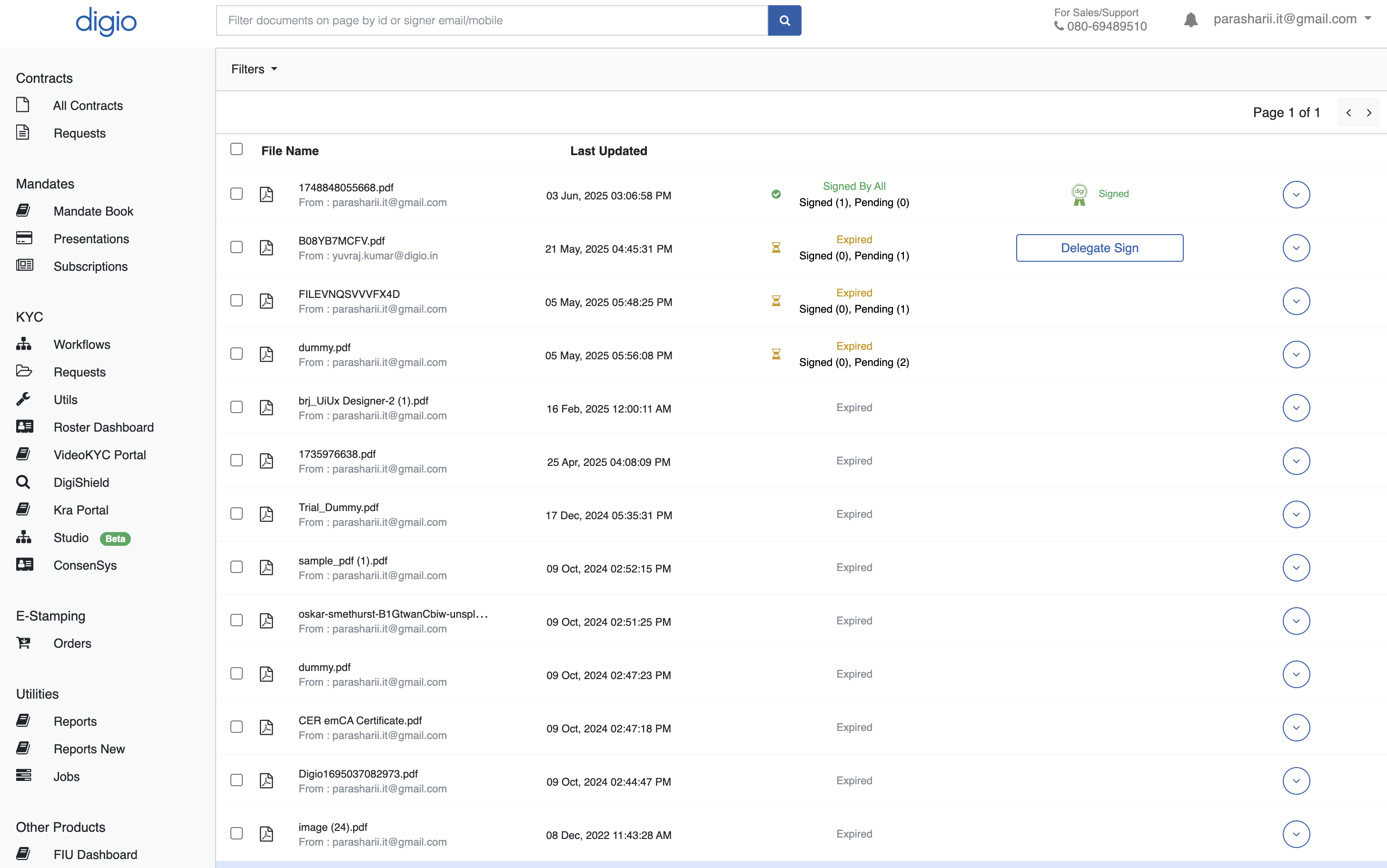
This is the centralized platform where Financial Information Users (FIUs) can manage templates, view consents, and initiate data requests.
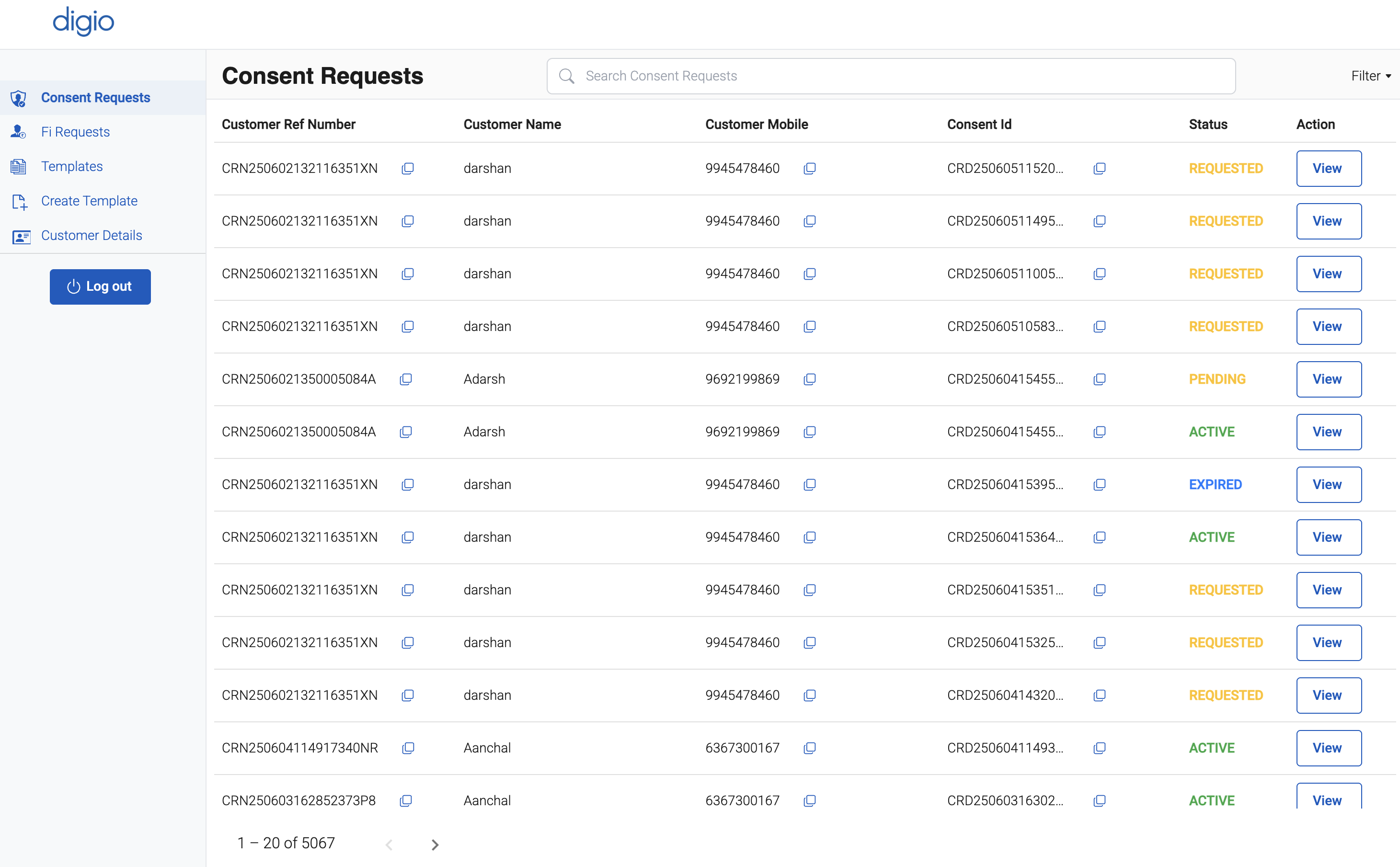
Step 2: Access the FIU Dashboard
Once on the portal, locate and click on the "FIU Dashboard" option. This will redirect you to the main dashboard interface where you can view and manage all template-related operations.
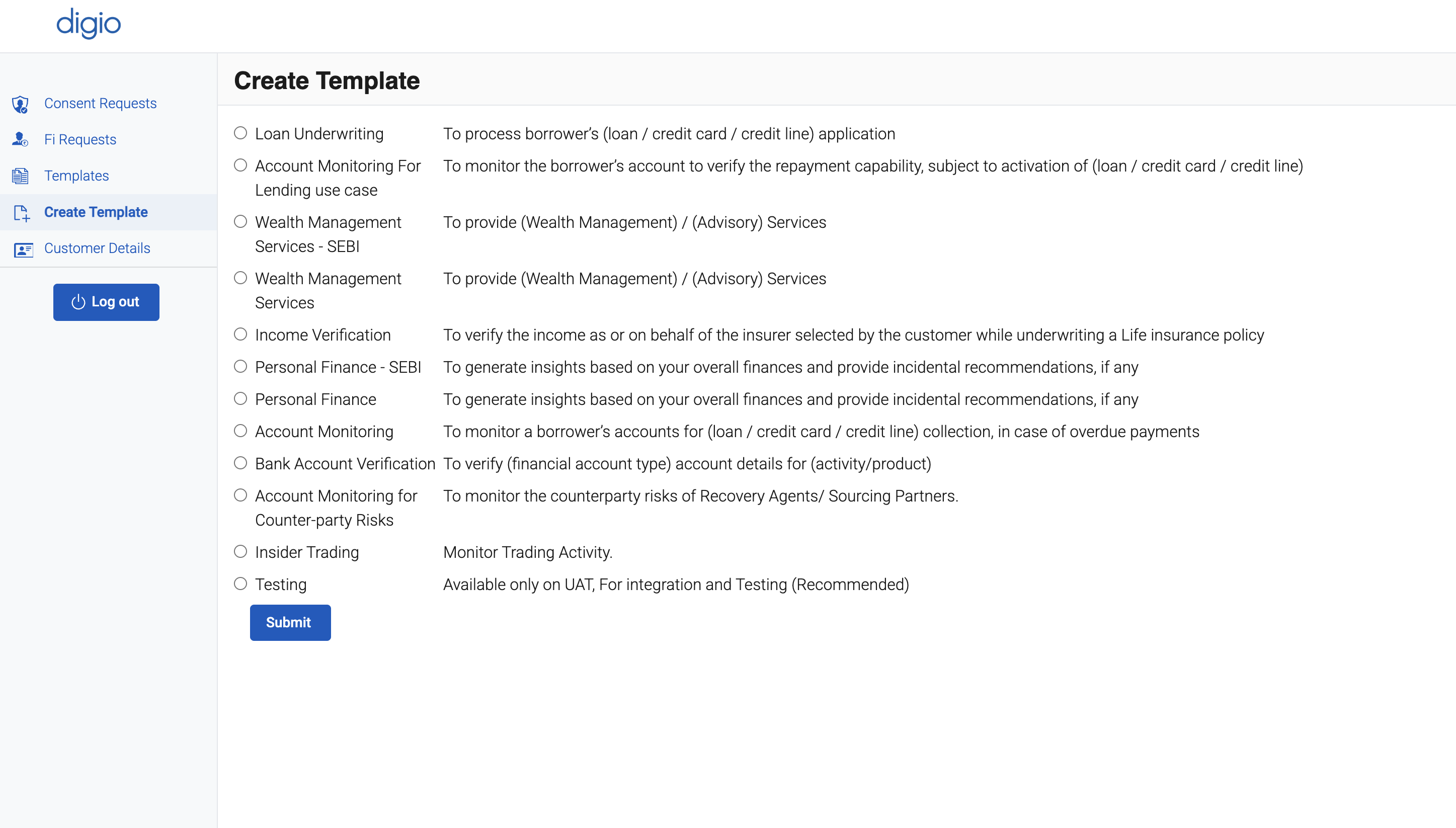
Step 3: Initiate Template Creation
On the dashboard, click the "Create Template" button. This begins the template creation process.
To gain a deeper understanding of the Account Aggregator ecosystem, use case categorization, and available financial information (FI) schemas, refer to the following resources:
Fair Use Case Categories
Sahamati’s Fair Use Template Library This resource provides a categorized collection of real-world use cases for the Account Aggregator framework. It helps FIUs and TSPs align their data access practices with recommended fair use guidelines. Each category includes a detailed explanation, template suggestions, and example implementations.
FI Types and Schemas
ReBIT’s Official Schema Documentation This API documentation portal lists the financial information types (FI types) supported under the AA framework, along with their associated schemas. It includes detailed JSON schema definitions and sample payloads for:
By exploring these resources, you’ll ensure that your FIU implementation remains compliant, robust, and aligned with the best practices recommended by ecosystem leaders like Sahamati and ReBIT.
Step 4: Fill Out the Template Form
Complete the template creation form by entering the required details, including:
- Template Name (A unique, descriptive identifier for the template. Used internally by the FIU to reference the purpose of the data access configuration)
- Preferred AA Id (Refers to the Account Aggregator (AA) that you prefer to use for initiating data requests. Example:
Anumati,Finvu,CAMSPay) - FI Type (Defines the type of financial information being requested from the FIP(s). Example: Deposits,Mutual Funds ,Insurance,Pension,Securities)
- Data Storage duration (Specifies how long the fetched financial data will be retained by your FIU system.)
- Data Storage duration unit (The unit of time associated with the data storage duration.)
- Data Frequency value (Specifies how often the data should be fetched from the FIP(s))
- Data Frequency unit (Defines the interval at which recurring data pulls occur.)
- And others
Filling out these fields accurately ensures that the consent request is legally compliant, properly scoped, and technically aligned with the AA framework and FIP capabilities.
Once all fields are completed and reviewed, submit the form to finalize the template creation.
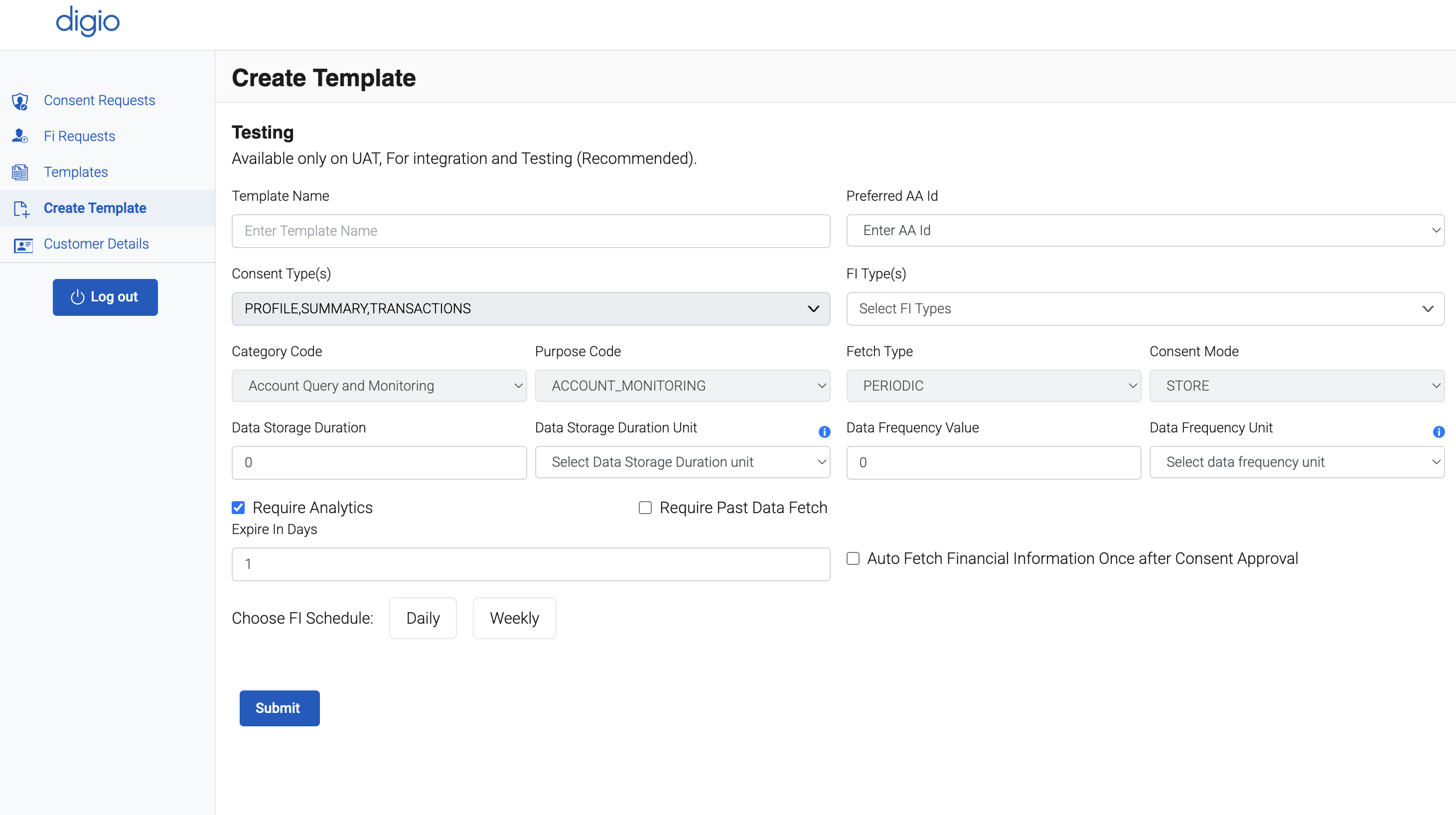
Auto-Fetching Financial Information Post Consent Approval
Once a user has approved a consent request via their Account Aggregator (AA) app, the FIU (Financial Information User) is permitted to fetch the user's financial data as per the terms defined in the consent (such as FI type, validity, frequency, and data range).
Note: Auto-fetch is typically used when the consent is one-time
Review the information and submit the form to trigger the consent request process.
Once submitted, the user will receive a notification via their registered AA application to approve or reject the request.
After reviewing the details, submit the form to create the template.
Viewing Existing Templates
To view previously created templates:
- Navigate to the left sidebar of the FIU Dashboard.
- Click on the "Templates" section.
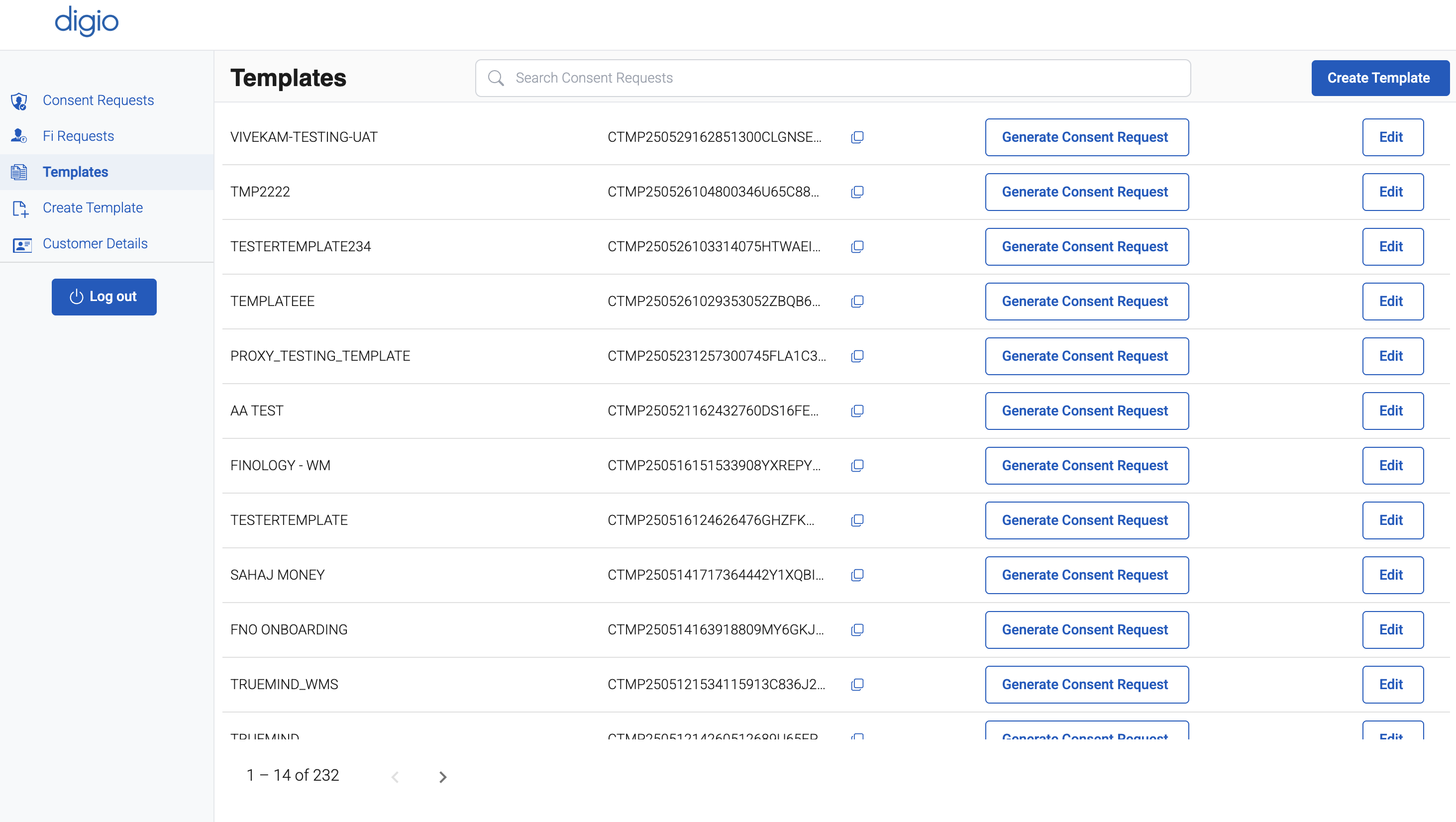
This section displays a list of all available templates along with relevant metadata such as:
- Template name
- Consent Template Id
You can use this interface to manage, edit existing templates as needed.
Learn More
For official documentation, technical specifications, and registration links, please visit: